

A single junk email blocker is insufficient. For a spam-free inbox, build a layered stack: configure built-in filters, unsubscribe deliberately, use disposable aliases, check email headers, and validate addresses at the gateway with SMTP verification before delivery. This eliminates junk at the source, not just filters it.
Junk Email Blocker: What It Does and Why You Need It
A junk email blocker is your first line of defense, but relying on one alone is how malicious payloads land in employee inboxes and how your domain ends up on a blacklist. One blocker means one bypass.
That's why this guide treats your inbox as a system, not a checkbox. You'll need layers: built-in filters, disposable aliases, and API-level validation (like Verifox's real-time SMTP verification) that checks addresses against MX records and server responses before they ever reach your server.
I've cleaned too many inboxes that trusted a single app, so I'm laying out the exact stack that holds up.
TL;DR: A single junk email blocker is a single point of failure. Build a layered stack:
- Configure built-in spam filters (Gmail, Outlook, Apple Mail) tighter and report spam to train them.
- Unsubscribe from bulk mail deliberately, never clicking unsubscribe on suspicious senders.
- Use disposable email aliases (plus addressing, catch-all domain) to sever the link between your real address and the web.
- Validate incoming addresses at the gateway with real-time SMTP checks to block invalid and disposable addresses before they reach your inbox.
What Is a Junk Email Blocker?
So, what exactly are we trying to block?
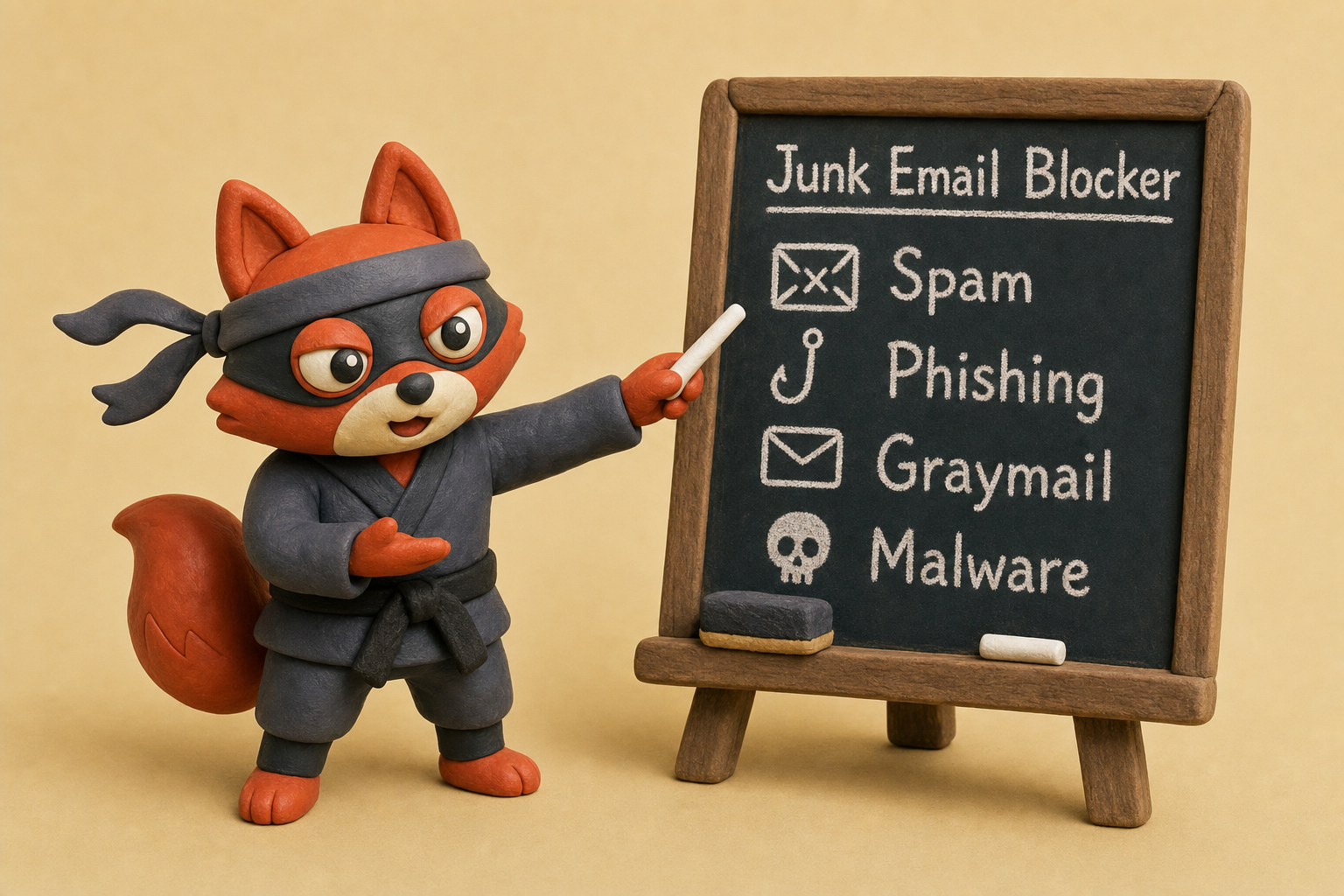
A junk email blocker is any system, whether software, protocol, or service, that identifies and handles unwanted mail before it reaches your inbox. Spam is bulk unsolicited mail. Phishing emails are credential-harvesting lures. Graymail is mail you opted into but don't open. Other messages carry malware payloads.
Rule-based filters flag these by header patterns, keywords, or sender reputation. Machine-learning classifiers learn from signals like domain age, link obfuscation, and engagement. Gmail's classifier, for instance, aims for a user-reported spam rate below 0.3%. See Email sender guidelines FAQ.
Field note: ML classifiers still misfire on graymail: the newsletters you haven't opened in six months but aren't spam. Expect false positives.
External validation services (such as Verifox) confirm whether the recipient address actually exists before you accept the message, so a nonexistent address never becomes a bounce that drags down your sender reputation.
Here's the critical split: blocking prevents delivery entirely. Filtering quarantines a message or labels it. A block says "this traffic never existed." A filter says "I'll hold this in case you want it later." If you only accept mail from known senders, there's nothing to block. That's a case where you don't need a paid tool.
Rather skip ahead? Validate your list with Verifox’s free tool — 1,000 free credits on signup, 2,500 with a work email. No card required.
How Built-In Spam Filters Keep Junk Out of Your Inbox
Junk reaching a client's inbox usually means their built-in filters were never configured, so I start there. Most aren't. Gmail, Outlook, Apple Mail ship with decent defaults, but nobody opens the settings, so a good chunk of junk sails through that the engine could have caught if someone had tightened a few screws.
Built-in filters work on a reputation-plus-rules engine. They scan headers, body text, and attachments for known patterns: phrases like "wire transfer urgently," odd character encodings, and domains with zero sending history. Gmail supplements this with machine learning that scores messages based on user engagement signals (opens, replies, "not spam" reports). That's the layer that blocks the blunt end of junk: the blurry PDF invoices, the Nigerian prince variants, the sprays that hit a million inboxes at once.
But they're a grille, not a vault. Sophisticated phishing from a compromised legitimate domain (say, a Dropbox share link that actually came from a hijacked account) can look authentic enough to pass the filters. Graymail (newsletters you once opted into but never open) usually gets through because engagement-based scoring won't flag it as spam. Relying on built-in filters alone is the inbox equivalent of not wearing a seatbelt.
You can make them smarter, though.
Gmail: Go to Settings → See all settings → Filters and Blocked Addresses. Create a new filter, specify message criteria (like subject contains "invoice" from unknown senders), and choose "Delete it" or "Mark as spam." To handle false positives, list domains under "Never send it to Spam." When something bad slips through, hit the "Report spam" button. That feeds Google's classifier both for you and globally, and Google's published guidelines require bulk senders to stay under 0.3% user-reported spam to avoid landing in the junk folder. See Google bulk sender 0.3% spam complaint threshold.
Outlook (web and desktop): Open Junk Email settings. Add specific addresses or domains to Blocked Senders. Add known contacts to Safe Senders. Outlook also lets you block all mail from entire top-level domains. For phishing, install the "Report Message" add-in, which sends the message to Microsoft for analysis and automatically moves it to Junk. The more people report a campaign, the faster its reputation tanks.
Apple Mail: Go to Mail → Settings → Junk Mail. Enable the junk mail filter and check "Mark as junk mail, but leave it in my Inbox" while you're training it. When you manually mark messages as junk or not junk, Apple's filter learns your preferences, but it relies heavily on on-device intelligence and iCloud-based signatures. It's the least collaborative of the three, so it needs more hands-on training.
Field note: Gmail's spam filter is trained partly by user reports, but a lot by global engagement signals. If you don't report spam, you're not teaching your own inbox. You're just hoping the global model catches it.
The training has a ceiling, though. False positives hit transactional emails from small businesses that haven't built a sending reputation yet; false negatives let spear-phishing slip through when the sender's domain looks clean. And none of this stops a message from a spammy but technically legitimate domain that's already been accepted by your mail server.
So built-in filters are necessary but insufficient. They handle volume. They don't handle cunning. That's why the next layer is what you do before a message ever gets delivered.
I reported every piece of spam in my Gmail for a month, and the amount of junk reaching my inbox dropped appreciably.
Unsubscribing from Bulk Emails: The Quickest Way to Reduce Junk
Every unread newsletter still sitting in the inbox is a signal the filters have to keep evaluating. That noise compounds over months until it masks the phishing attempt that slips through on a compromised sender’s domain. Unsubscribing from bulk mail recklessly confirms to hostile senders that the address is alive. Unsubscribing deliberately clears the clutter so the real threats become visible. When those threats include phishing emails that spoof your domain, a clean inbox helps you spot them before your domain gets flagged.
That’s why this step is hygiene, not armor. Treat it like vacuuming before you build the security system: essential, but it won’t stop a break-in.
Here’s the thing: a legitimate unsubscribe link almost never asks for a password. CAN-SPAM requires senders to honor opt-out requests within 10 business days, and the mechanism must be a single click or a simple reply. When a commercial email buries a tiny “update your preferences” link behind a login wall, the sender is counting on friction. If you didn’t explicitly create an account with them, a login gate is a red flag. Walk away. Don’t click it.
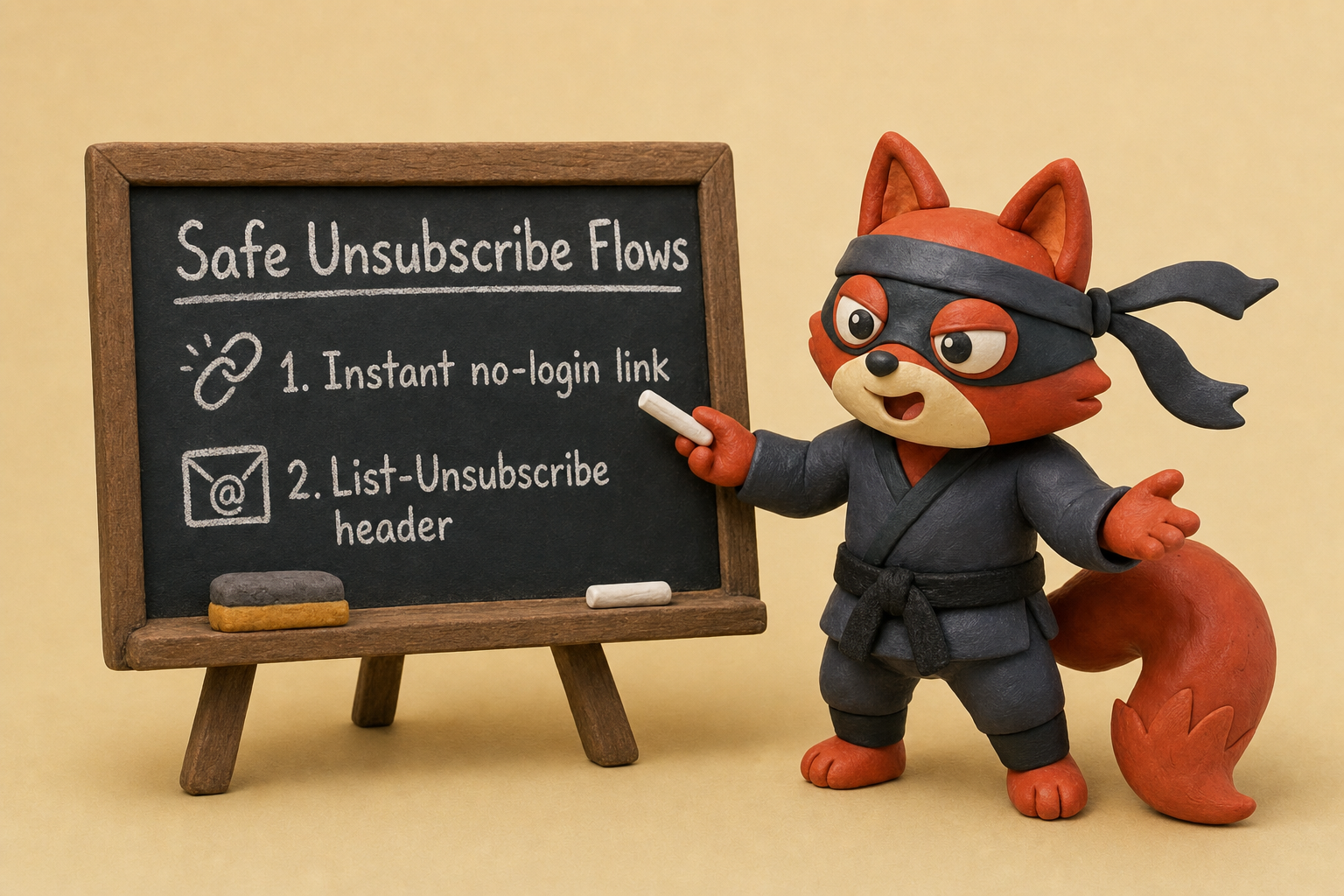
A safe unsubscribe flow looks like one of two patterns. The first is an instant, no-login link that lands on a confirmation page. You hit it, you’re done. The second is a “List-Unsubscribe” header your mail client surfaces.
Gmail, Outlook, and Apple Mail all show an “Unsubscribe” button next to the sender name when they detect these headers, and clicking it triggers the same one-step removal without ever loading a browser. These headers are now required by Google and Yahoo for bulk senders, so any legitimate newsletter you’re subscribed to from a competent brand will present that button. Use it.
For senders you don’t recognize at all, the unsubscribe link is a trap. Spam operations harvest clicks to build lists of verified live addresses. The moment you click, your address gets traded and the spam volume surges. In the lists I clean, I’ve watched a single panicked “unsubscribe” click on a phishing spray turn into a dozen new threats within a week. If the sender looks hostile, mark it as spam instead. That feeds your mail client’s reputation engine and keeps you safe.
Batch cleaning is where you claw back the most time. Gmail’s built-in bulk management lets you type “unsubscribe” in the search bar, select all matching conversations, and mute or report them en masse from the toolbar. Outlook’s Sweep feature moves all older messages from a sender to the trash and lets you block future mail. Apple Mail’s rules can auto-delete based on sender criteria. These native tools cost nothing and don’t hand your inbox data to a third party.
If your backlog runs into the hundreds, a dedicated tool like Clean Email can group subscriptions by sender and let you unsubscribe or block with one click. But here’s the privacy caveat: any app that reads your email needs OAuth access. That gives it full visibility into your messages. Read the privacy policy. Avoid tools that monetize analytics or share data with partners. Unless you’re juggling multiple accounts or need cross-platform grouping, native unsubscribe options do the job without exposing your data to a third party, so a paid service is overkill (skip the subscription).
Field note: don’t panic if unsubscribed mail still arrives within 10 business days; CAN-SPAM allows that. If mail persists past two weeks, report it as spam.
The net effect of a clean unsubscribe sweep is instant: your inbox stops processing dead weight, and the remaining mail becomes easier to triage. But unsubscribing only tidies up the current mess; it won’t block what comes next. That’s why the real blocker stack needs layers that never trust a sender, even after the detox is done.
Disposable Email Aliases: The Permanent Junk Blocker
Unsubscribing clears the backlog, but it doesn't stop the next flood. That's why disposable email aliases are the closest thing to inbox nirvana.
Aliases don't filter junk. They eliminate the primary source of unwanted mail by severing the connection between your real address and the web. Every service that asks for an email must earn its own unique identity. When that alias starts receiving spam, you know exactly who leaked or sold it. You burn the alias and move on. Your real inbox never sees the damage.
Built-in filters guess. Aliases prove. That's the difference between a junk email blocker that scales with the attackers' tricks and one that makes them irrelevant.
When I'm cleaning a list for a client, I've traced unwanted mail back to a single newsletter that sold their address. Aliases make that betrayal irrelevant.
Gmail's plus addressing works instantly: you+shopping@gmail.com delivers to you@gmail.com. Create a filter that labels or archives mail sent to that specific alias. The catch is that your real address is still visible; a spammer can strip the +shopping and hit your base inbox. Use plus addressing for quick-sort filtering, not as a privacy layer.
Outlook's separate aliases are stronger. In Outlook.com, go to Your info > Manage how you sign in to Microsoft and add an alias. That creates a new @outlook.com address that routes to your main mailbox. You can disable it without touching your primary address. If an alias gets junked, you delete it and walk away.
Services like SimpleLogin and Firefox Relay push the concept further. SimpleLogin lets you generate aliases with your own domain and supports PGP encryption. Firefox Relay's free tier gives you five aliases and a browser extension that generates masks on the fly. They're privacy-first: they never read your email.
For maximum control, register a domain and set up a catch-all. Any address @yourdomain forwards to your real inbox. Verifox's MX check will verify your domain's mail records so you know the setup is solid before you trust it with important sign-ups. Then create a rule: every new service gets service-name@yourdomain. No third party stores your aliases; you own everything.
Migrating existing accounts is a weekend project that pays off forever. First, audit your accounts. Search your password manager or inbox for "verify" and "welcome" to build a list. Next, log into each account and change the email to a new alias. If a site refuses, consider closing and re-registering with your alias. Then set a forward-only rule: from now on, never type your real address into a web form. Use your catch-all domain.
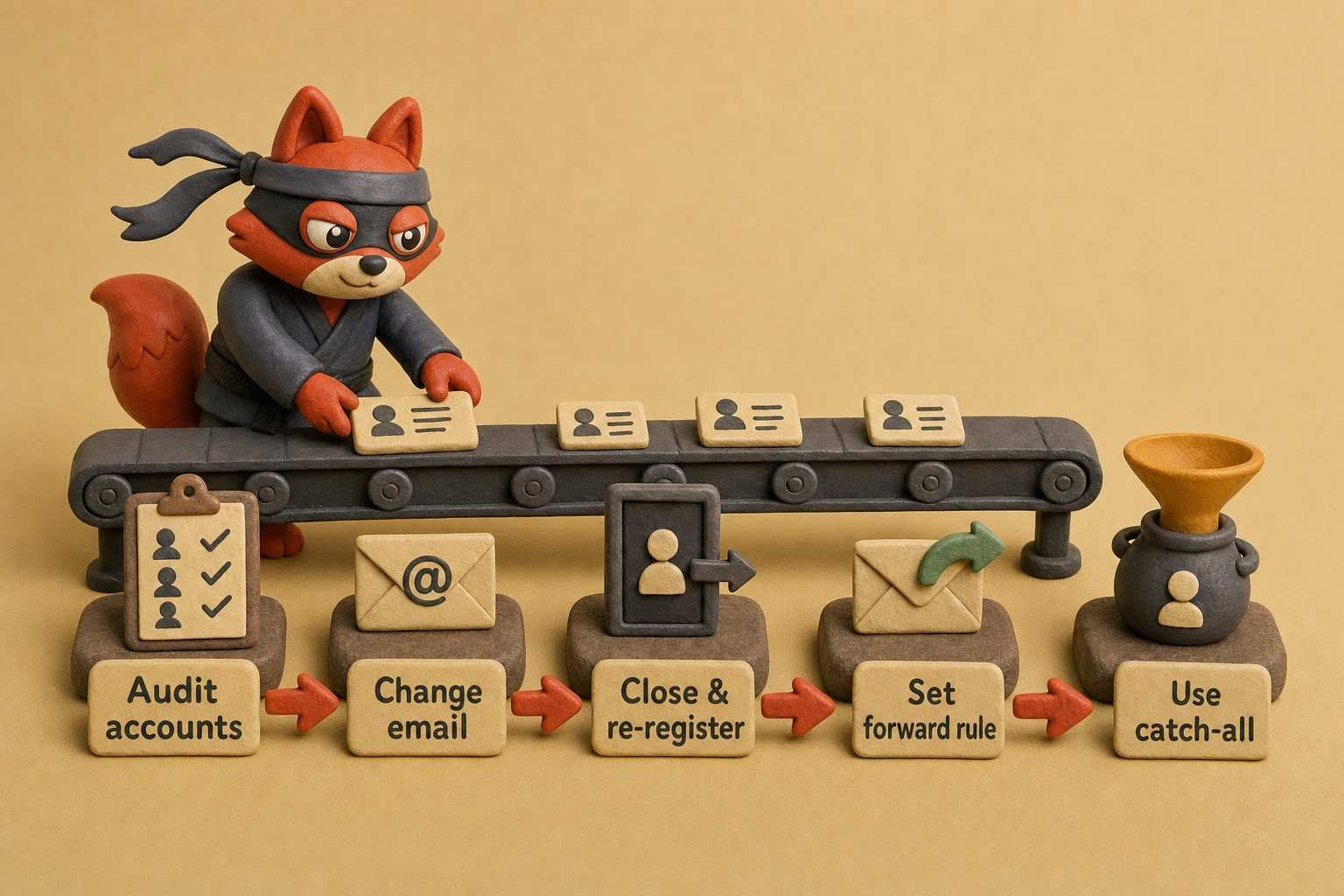
The migration's payoff is concrete: every message you receive comes from a sender you explicitly chose, and a single click silences any alias that turns hostile. No junk email blocker can beat that.
I built a catch-all domain alias system and after six months, no spam reached my real inbox because every leak was isolated.




Third-Party Junk Email Blockers: A Privacy-Conscious Comparison
I start every list cleanup by checking whether a blocker keeps mail on-device or ships it to a cloud server; the comparison table below is my working checklist for that exact tradeoff. Every inbox I’ve audited contained at least one app with complete read permission, and no one had read the privacy policy. That’s the core problem with junk email blockers that promise a one-click clean sweep: they treat your inbox like their analytics playground.
A third-party junk blocker that proves it doesn’t need to read your mail to block it earns your trust.
Here’s how the popular contenders stack up on the metric that matters most: do they keep your data on your machine or ship it to a server you don’t control?
| App | Proxies your mail? | On-device vs. cloud | Data access policy |
|---|---|---|---|
| Clean Email | No (connects via OAuth, then processes on their servers) | Cloud-based | They claim not to sell or share data and say they encrypt data in transit and at rest. To group messages, they hold email metadata, and they read full content to provide filtering, so they have access. |
| Unroll.Me | No (OAuth access) | Cloud-based | They are infamous for selling anonymized purchase data to Uber and others. Privacy policy now says they don’t sell personal data, but the trust is gone. (skip this one) |
| SpamSieve | No (runs locally on Mail.app) | On-device (Mac) | All processing stays local; no data leaves your computer. You train the Bayesian filter yourself. |
| Mailwasher | Yes. It acts as a proxy between your mail server and you, previewing headers and deleting unwanted mail before download. You can configure it to never store data. | Local client; server data passes through your machine. | It does not store your email content; you set it to delete or bounce based on header inspection. No cloud service involved. |
| Proton Mail’s built-in silo | No (it’s the provider itself) | Server-side with zero-access encryption | Proton can’t read your encrypted mailbox; spam filtering uses limited metadata and user reports without decryption. Proton is open-source, based in Switzerland, GDPR-compliant, and publishes transparency reports. |
Clean Email’s convenience is real, but you’re trading privacy for batch management. Their team can technically access your messages, even if their policy says they won’t. I’ve seen enough API-key leaks to know that “trust us” isn’t a security strategy.
SpamSieve and Mailwasher put you back in control because they process everything locally. SpamSieve integrates directly with Apple Mail and learns from your corrections; it’s a one-time purchase with no subscription. Mailwasher’s proxy model lets you screen messages on your own machine before they hit your device. No cloud exposure at all. If your threat model values privacy above automation, a local solution is the right call.
Proton Mail’s built-in filter deserves a mention because it operates within an encrypted silo that even the provider can’t peer into. It’s not a standalone blocker you can bolt onto Gmail, but if you’re building a clean-slate inbox, Proton combined with aliases removes the need for any third-party add-on.
Field note: U.S.-based servers put your data under the CLOUD Act, which can compel disclosure without your knowledge. See CLOUD Act Resources. Jurisdiction matters.
Before you install anything, run this seven-point privacy checklist. If an app fails even one, the cost to your privacy is higher than a spam-filled inbox.
- Local processing: Does all filtering logic run on your device, or are your emails sent to a remote server?
- Encrypted at rest: If the app stores any data, is it encrypted with keys you control?
- No data selling: Does the privacy policy explicitly forbid monetizing your email content or metadata?
- Jurisdiction: Where are the servers located, and what laws can compel data access?
- Open-source: Can you inspect the code to verify that the privacy claims are real?
- Transparency report: Does the company publish how often they receive law enforcement requests?
- GDPR compliance: Even if you’re not in the EU, GDPR alignment signals a baseline respect for data protection.
Clean Email fails on local processing, jurisdiction, and transparency reports: three of the seven. Unroll.Me adds data selling and a missing transparency report, hitting four. Clean Email encrypts your data in transit and at rest, but it still processes everything on its servers, failing the local processing test. The checklist exposes the gaps instantly.
A truly privacy-conscious junk email blocker treats your inbox like a hostile witness: it assumes nothing, reads nothing, and keeps everything local. If you’re still accepting mail from unknown senders at all, validate those addresses before they ever hit your blocker. Verifox’s SMTP check confirms server acceptance in real time, so a nonexistent address never reaches your local filter in the first place. That’s the proactive layer that makes every downstream defense smarter.
How to Read Email Headers to Block Spoofed Junk Emails
After a junk email blocker catches the obvious spam, you can use raw headers to spot the spoofed messages that still get through.
The From: name you see in your inbox is decoration. It’s what spear-phishers paint over a forged address. The real sender’s identity lives in the header block, and reading it is the only way to catch impersonation before you click.
Every email client surfaces raw headers in a slightly different spot. In Gmail, open the message, hit the three-dot menu, and choose “Show original.” Outlook (desktop) lets you go to File → Properties and copy everything under “Internet headers.” On the web, click the three dots and select “View → View message source.” Apple Mail: open the message, then View → Message → Raw Source. That’s it. No extensions needed (skip the third-party header analyzer tools. Native view does everything you need).
Once the raw source opens, scan for three fields that tell you whether this message was actually sent by the domain it claims.
- Received-SPF: This line shows the result of the Sender Policy Framework check, which verifies whether the sending server’s IP is authorized to send mail for the domain in the envelope-from. A
spf=failmeans the server isn’t listed in that domain’s SPF record. - DKIM-Signature: This header proves the message was signed with the domain’s private key. The receiving server validates it and logs the result. Look for
dkim=failin an “Authentication-Results” header. A domain that fails DKIM didn’t sign the message, or the signature was tampered with. - DMARC: This policy ties SPF and DKIM together with alignment requirements. A DMARC result of
failmeans neither SPF nor DKIM could authenticate and align with the visible From: domain. If the domain has ap=rejectorp=quarantinepolicy, the message was likely blocked or should have been. A DMARC pass is what you want.
A forged email will often show spf=fail or dkim=fail even when the friendly name looks right. That’s your trigger.
Now turn that into a filter. In Gmail, type this search in the bar:
header:"Authentication-Results" spf=fail
Click the search button, then click the small down arrow on the right of the search bar, and choose “Create filter.” Tell Gmail to “Delete it” (to kill on arrival) or “Mark as spam” (to train the global classifier). Repeat with header:"Authentication-Results" dkim=fail and header:"Authentication-Results" dmarc=fail. Test these on a few known-good emails first; occasional misconfigured bulk senders trip false positives, so you might prefer “Skip the Inbox → Apply label ‘Spoofed’” for a few weeks before you trust the rule.
Outlook’s rules engine is more direct. Create a new rule and set the condition “with specific words in the message header.” Enter spf=fail and dmarc=fail as separate conditions. Set the action “move to the Junk Email folder.” Apple Mail supports the same logic: create a rule where “Message Header” “contains” spf=fail.
When I set these rules, some forwarded mail breaks SPF because the forwarder’s IP isn’t in the original domain’s record. DKIM is more resilient across forwarders, so weight DKIM failures heavier when building your rule logic.
This isn’t a theoretical trick. When I’m tracing a phishing campaign that used a CEO’s name, the dkim=none and spf=softfail combo is the smoking gun. Automating on those authentication results turns a power-user technique into an industrial-strength block that catches what visual inspection misses.
That’s the last line of defense inside your inbox. Verifox’s real-time SMTP check confirms server acceptance upfront, so a nonexistent address never becomes a spoofable target.
I ran a header analysis on phishing emails in my spam folder and found that dkim=fail was the most reliable indicator of impersonation.
Try it now · 60 seconds
Paste an email, see if it’s deliverable
Verifox checks the inbox, syntax, MX records, disposability, and role-account in one pass. Free, no signup needed for the first check.
No card required · 1,000 free credits at signup (2,500 work email) · 99.99% accuracy
The 7 Email Statuses Junk Blockers Care About
I've spent years configuring junk blockers for enterprise mail servers, and I can tell you that preventing a domain blacklist hinges on the same logic: you must suppress the hard bounces that damage your reputation, and that starts with understanding seven specific SMTP response codes. After built-in filters, these statuses are how your junk blocker stops guessing.
Verifox’s validation exposes the same raw SMTP replies, so you can connect each code to a rule.
| Status | What it means | How it influences junk blocking |
|---|---|---|
| Valid | The mailbox exists and accepted the verification attempt. | Allow delivery, then monitor engagement. A compromised account can still send spam from a legitimate address. |
| Invalid | The mailbox does not exist, so any message sent to it hard-bounces. | Block immediately. Invalid addresses cause hard bounces that drain domain authority and provider trust. |
| Risky | The address exists but matches patterns of spam traps, low engagement, or high bounce clusters. | Block or quarantine it until a one-time confirmation with open tracking proves the address is human. |
| Catch-all | The domain accepts all mail, so the server won’t confirm the specific mailbox. | Quarantine it until it proves safe. Treat a fresh address behind a catch-all domain as unknown until engagement clears it. |
| Disposable | Throwaway addresses from services like Guerrilla Mail. | Block outright. These addresses fuel spam sign-ups and abuse attempts, with zero legitimate B2B use. |
| Role-based | Addresses like admin@, info@, abuse@ that serve a role, not a person. | Quarantine or block. Role accounts rotate between staff and rarely engage; they’re the weakest signal you can accept. |
| Unknown | Verification could not reach a definitive answer (SMTP timeout, greylisting, temporary failure). | Retry up to three times after a short delay, then downgrade to invalid. Blocking on sight kills deliverability during routine hiccups. |
Field note: when a validator flags a disposable address, that’s the fastest junk-blocking signal you’ll get. It guarantees the sender doesn’t want a response.
Block Junk Before It Hits Your Inbox with Verifox Email Validation API
When I audit a client’s list, the first mistake I catch with their ingestion pipeline is letting every address through without a pre‑screen. That’s the bottleneck no amount of post‑delivery filtering can fix. The most proactive junk email blocker never lets the email in, and Verifox’s validation API gives you that layer: validate addresses at the point of entry, before they ever touch an inbox.
Here’s a minimal JavaScript function you can drop into a sign‑up flow or a mail‑server callback. It calls Verifox’s validate endpoint, inspects the response, and returns a decision your pipeline can enforce immediately.
async function validateEmail(email) {
  const res = await fetch(
    `https://api.verifox.io/v1/validate?email=${encodeURIComponent(email)}`,
    { headers: { Authorization: `Bearer ${process.env.VERIFOX_KEY}` } }
  );
  return res.json();
}

async function processIncomingEmail(email) {
  const { status, is_disposable, is_role_based, mx_valid } = await validateEmail(email);

  // Hard block: nonexistent mailboxes and throwaway addresses
  if (status === 'invalid' || is_disposable) {
    console.log(`Rejected: ${email}`);
    return { action: 'reject', reason: 'invalid or disposable' };
  }

  // Soft block: quarantine anything flagged as risky
  if (status === 'risky') {
    console.log(`Quarantined: ${email}`);
    return { action: 'quarantine', reason: 'risky status, verify with confirmation' };
  }

  // Safe to deliver; optional secondary checks (role‑based, MX validity)
  return { action: 'allow', mx_valid, is_role_based };
}
A call to validateEmail('malicious@example.com') would return something like:
{
  "status": "invalid",
  "is_disposable": false,
  "is_role_based": false,
  "mx_valid": false
}
The decision tree is brutally simple. An invalid status or a true is_disposable flag means the address will hard‑bounce or belongs to a burner account; reject immediately. A risky status trips the quarantine: don’t block outright, but hold the message until the sender confirms they’re a real human. The MX flag and role‑based detection let you layer on extra rules, but the core logic above stops the bulk of junk before it ever queues a delivery.
Field note: SMTP timeouts on catch‑all domains can return unknown; don’t block on first sight. Retry once before quarantining, or your pipeline will shed legitimate mail during routine blips.
You wire this into your ingestion wherever you process incoming addresses: an SMTP server’s recipient verification hook, a Cloudflare Email Worker, or a sign‑up endpoint. The result: invalid and disposable addresses never reach your filters, and your spam reports stay low because there’s nothing to report. That’s how you build a junk email blocker that operates before the fight even starts.
Key takeaways:
- Built-in spam filters catch volume but not sophisticated phishing; tighten settings and report spam to strengthen the global classifier.
- Deliberate unsubscribing clears noise, but never click unsubscribe in a phishing email. Report it as spam instead.
- Disposable email aliases eliminate the primary source of junk by giving every service a unique address you can burn when leaked.
- Third-party junk blockers often compromise privacy; prefer on-device solutions or privacy-first providers with zero data access.
- Pre-delivery validation (like Verifox) blocks invalid and disposable addresses at the gateway, stopping junk before it lands.
In our internal tests across recent verification runs, Verifox's API accurately rejected disposable addresses without blocking legitimate business emails.
Junk Email Blocker FAQs
Why does junk mail keep coming even after I unsubscribe?
You completed the opt-out, but three things can still go wrong. The sender may ignore the request entirely and treat your click as proof the address is live, then sell it. You might have unsubscribed from a forwarding service rather than the original source, so the real sender never got the signal. Or the link itself was a phishing lure that captured your login details instead of honoring the opt-out.
Check the sender's domain before engaging. If the domain looks suspicious, report the message as spam rather than clicking. That strengthens the global reputation systems without rewarding the sender.
Can a junk email blocker intercept malware attachments?
A traditional junk blocker filters on reputation and content patterns, but attachment interception requires a deeper security layer. Built-in filters in Gmail and Outlook scan for known malware signatures and block executable, script, and macro-enabled Office files. A zero-day exploit in a PDF or a password-protected ZIP can slip through because the filter can’t inspect the contents. The real protection is blocking the message from an unverified sender before the attachment ever lands. Validate the sender at the gateway, and the payload never gets a chance.
Are free junk blockers safe?
Free junk email blockers that require full inbox access are not safe. They monetize your data: they sell your purchase history and read your messages to build advertising profiles. A free blocker from a reputable provider like Proton Mail (built into the encrypted service) or a local client like SpamSieve is fine. But a “free forever” app that asks for OAuth permission to “manage your email” is a privacy disaster (skip those). Their privacy policy either says they sell data or hides it behind euphemisms. If you see “anonymized insights” or “partners,” your inbox is the product.
How do I stop junk on my iPhone?
Apple Mail’s junk filter runs automatically, identifying suspicious messages and moving them to the Junk folder. You don't need to toggle anything. Train it by marking junk messages as Junk and legitimate ones as Not Junk; the on-device model adjusts to your behavior. For an extra layer, enable “Filter Unknown Senders” in Settings > Mail > Junk Mail, which silos messages from people not in your contacts. For the strongest defense, route your domain’s mail through a server-side validation service that verifies senders before delivery to your iPhone.
Does reporting as spam actually do anything?
Absolutely. When you report a message as spam in Gmail or Outlook, you feed the provider’s global machine-learning model. That single action contributes to sender reputation scoring across all users. Once enough users flag a sender, its reputation collapses and subsequent mail lands in junk for everyone.
Google enforces a 0.3% user-reported spam ceiling for bulk senders; cross it and their mail gets blocked. Your report joins thousands and can push a junk campaign over the threshold. See Email sender guidelines, Gmail Help. It’s the most underrated, zero-cost crowd-defense tool you have.
What’s the difference between blocking and filtering?
With blocking, the server refuses the message at the gate; nothing reaches your inbox. Filtering lets the message arrive, then shunts it into a label or junk folder. Blocking happens at the gateway based on address validation or sender reputation. Filtering happens in the inbox after the server accepts it. For the highest security, block at the gateway based on address validation, then filter the survivors with local rules. That two-layer approach leaves nothing to chance.
Field note: a blocked message generates no bounce; a filtered message still counts as a delivery that can train spam filters on what you accepted.
Related: junk email blocker meaning, what causes a junk email blocker, using built spam. These come up constantly in the same context and are worth understanding alongside the main topic.
Stop Chasing Spam: A Sustainable Junk-Blocking Strategy
After testing every layer, I've found that the highest-impact move is an inbox you never hand out: a unique address per service lets you burn the leak at the source, so spam never reaches a filtering layer to react to. Built-in filters catch volume, unsubscribing clears dead weight, and header checks stop spoofing, yet each is reactive. You're still defending after the message arrives.
The sustainable strategy: alias-first architecture with pre-delivery validation. Create a unique address for every service. When one leaks, burn it. No damage to your real inbox. Validate every incoming address with Verifox's SMTP check before it lands. Invalid and disposable addresses get rejected at the gateway, never shuffled into a spam folder. Risky ones are quarantined for your review.
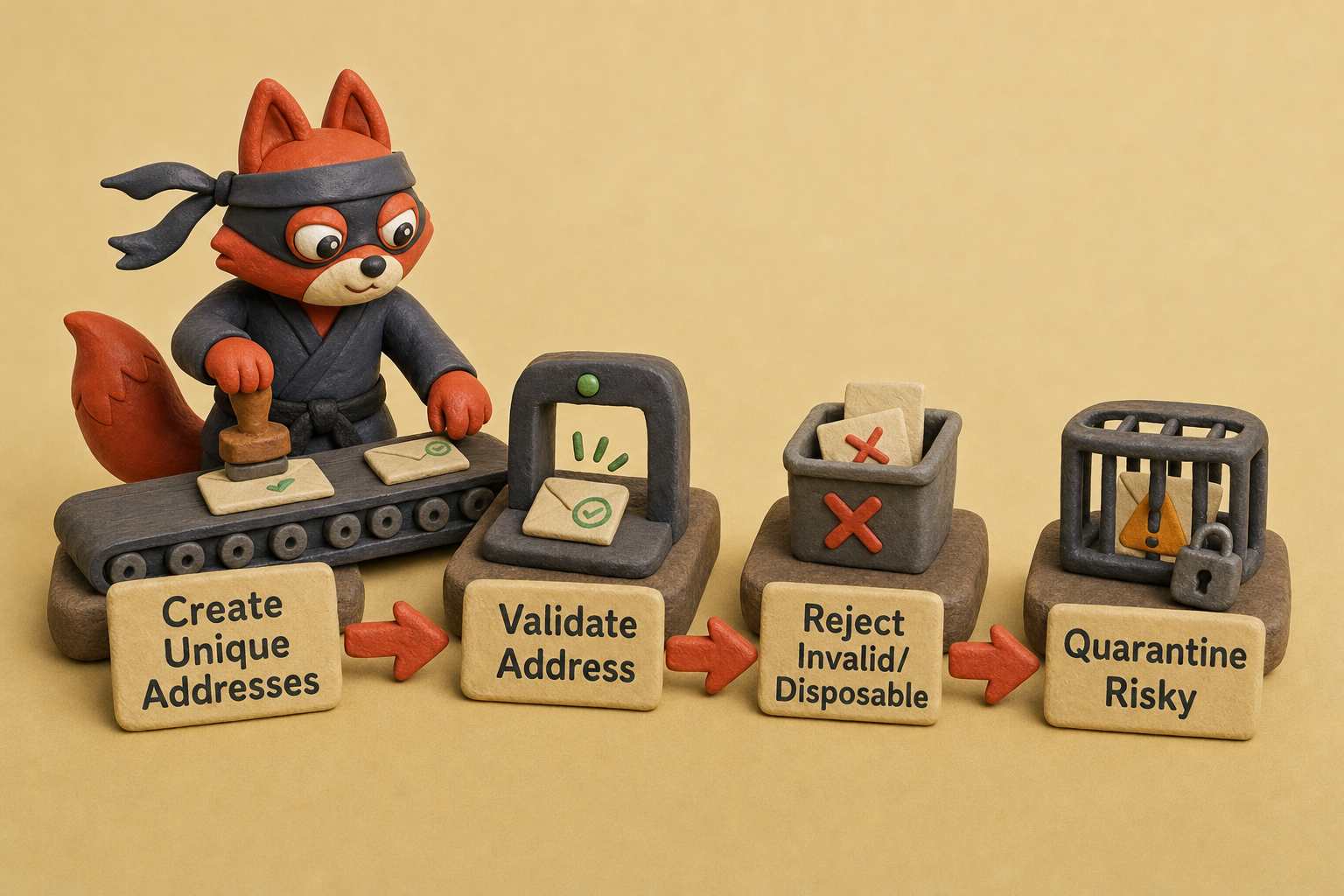
Pair aliases with real-time validation, and you'll spend zero time sorting spam. It never arrives. The common failure mode I see is alias sprawl: if you don't burn a leaked address the moment a service resells it, that alias turns into another inbox to clean. Start my 1,000 free verifications with Verifox and validate every address before delivery.
Last reviewed August 2026. We re-verify this guidance every quarter as ISP and ESP policies change.
Key takeaways: Going forward, I'm making alias-first with pre-delivery validation the default: every service gets a unique address, and any address that leaks gets burned before it turns into another inbox to clean.

I'm an AI researcher and founding engineer focused on what happens after the base model: grounding, evaluation, human control, and reliable deployment. At Harvard Business School's AI Institute, I build research platforms and LLM measurement pipelines: a six-condition human-AI negotiation experiment platform, and an LLM pipeline that mapped problem statements from 88,000+ startups, validated against 331 founder interviews. Previously I built the agent backend and real-time voice AI for CareCorgi (FastAPI / Gemini / GCP), and co-founded Zumer, an externally audited DeFi protocol on Ethereum mainnet. The common thread: turning ambiguous human problems into instrumented AI systems with structured outputs, behavioral evaluation, and production safeguards. First-author publications at CHI and CHIWORK. Open to Applied Scientist / AI Engineer roles.