

A Gmail verification code proves momentary control of an inbox, phone, or device, not that the email address is valid. An unsolicited code means someone has your password; change it and force sign-out before anything else. Print backup codes and enroll Google Authenticator for reliable recovery and offline 2FA.
What Is a Gmail Verification Code?
Most people land on this page after a gmail verification code arrives uninvited, and the first question is whether to type it in. You’re mid-signup with a non-Gmail address when your phone buzzes. Six digits. A Gmail verification code just landed.
It’s a short-lived proof that someone controls a phone number or inbox, not proof that an email address is valid. A valid address and a controlled inbox are two separate questions, and Google’s code only answers the second one in real time. It’s not a password, not an account key, and not a green light for the email address on the form.
Google sends one in four main spots: creating a Google Account with a non-Google email, verifying a phone number by SMS, approving a 2-Step Verification sign-in, and recovering an account. If you’re building a signup flow, that distinction matters twice: a code can prove the person is reachable, but it can’t tell you whether the address will bounce later.
I’ll walk through each code path, then show how Verifox validates the underlying address before that signup or recovery email gets sent. Which one brought you here?
TL;DR:
- A Gmail verification code proves a person can reach that phone or inbox right now, not that the email address is valid or safe to send.
- An unrequested code usually means your password is already exposed: change the password and revoke unknown sessions before doing anything else.
- Print backup codes before enrolling Google Authenticator; SMS is a fallback, not a primary protection.
- If you're sending codes, validate the address first so catch-all, disposable, and role-based addresses don't fake a successful send.
Every Gmail Verification Code Type, Compared
The first difference between these six codes is which channel they prove you control. A signup email code proves the inbox you just typed into the create-account form. An SMS code proves the phone line attached to your account. An Authenticator TOTP proves control of a seeded device. A backup code proves you kept a printed list or password-manager entry safe. A recovery code proves whichever recovery channel Google used to send it. A Google prompt proves you can unlock a signed-in device.
Not all are equal: SMS has SIM-swap exposure, TOTP stays offline, and backup codes are the underused failsafe.
| Code type | Offline access | SIM-swap risk | Device-loss recovery | Setup difficulty |
|---|---|---|---|---|
| Signup email code | Needs the inbox; no offline fallback unless email is already synced | Low: no carrier path, but an inbox compromise gets it | Recreate the account or update the recovery email | Easy: one-time field |
| SMS 2FA code | Cellular signal, no data | High: a ported number receives the code | Remove the lost SIM or use backup codes | Easy: link a phone number |
| Authenticator TOTP | Full offline via RFC 6238 seed | Low: seed lives on the device, no carrier | Use backup codes, then re-enroll a new authenticator | Moderate: install app, scan secret |
| Backup code | Full offline if printed or stored; each code is one-time | Low: stolen static codes only | Generate a new set to revoke the old codes | Easy: print and store ten |
| Recovery code | Depends on path: email needs internet, phone needs cellular | Medium if the recovery path is a SIM-swappable phone | Run recovery via a trusted device or backup email | Moderate: configure multiple paths |
| Google prompt | Needs internet and a signed-in device | Low: no SIM path; device compromise is the main risk | Use backup codes or revoke the device from another signed-in device | Easy: tap Yes |
If the code lands in the non-Google address you typed at account creation, it's a signup email code. If it arrives by SMS after a password, it's the SMS 2FA code. If you opened an authenticator app, that's the TOTP. If you're reading a printed or saved 8-digit code from security settings, it's a backup code. If it arrives after "Try another way" during recovery, it's a recovery code. If a push asks you to tap a number on a signed-in device, it's a Google prompt.
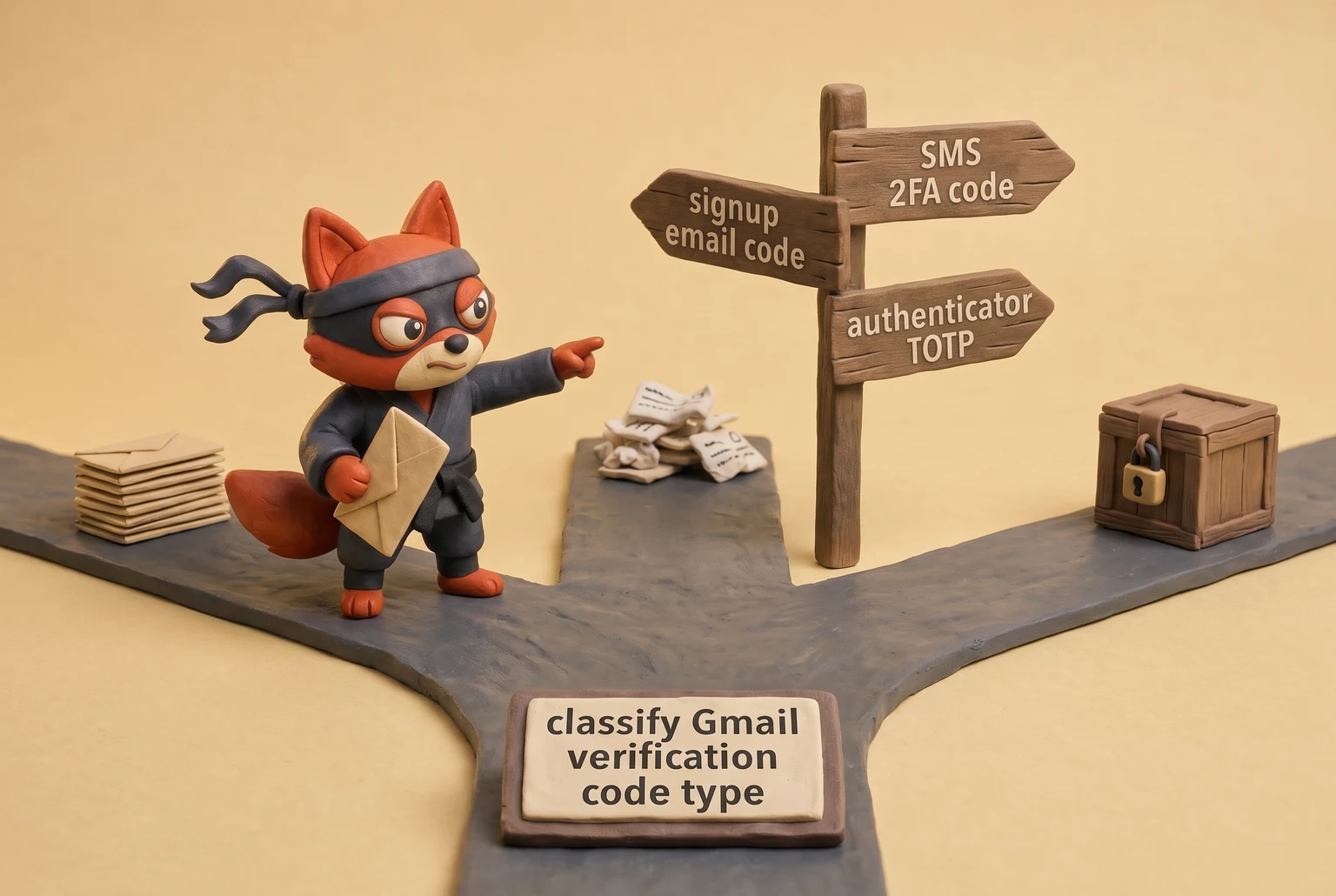
The signup email code and the SMS 2FA code split hardest in incident response. The first proves the address's inbox was reachable during creation. The second proves the phone number is still carrier-controlled right now. A SIM port captures the SMS path; a stolen authenticator device doesn't hand over the TOTP unless the thief can unlock it. Backup codes sit outside both paths, which is why they're the failsafe: they work with no phone, no carrier, and no data, as long as the printed list or password-manager entry is still in your control.
Field note: A throwaway inbox can accept a signup code and bounce a week later. Code receipt is reachability, not address validity.
Google's Authenticator TOTP generation follows RFC 6238, the time-based one-time password standard. See TOTP generation follows RFC 6238. That's the reason it keeps working in airplane mode. The seed lives on the device, and the app derives a fresh code from the seed and the current time. No network request, no SMS delivery, no carrier involvement.
That offline independence is the structural edge over an SMS code, which needs cellular signal but no data connection.
I keep two references on hand for this exact comparison: Google's Account Help for backup-code regeneration rules, and NIST SP 800-63B for why a TOTP seed counts as a possession factor (Google Account Help, NIST SP 800-63B).
For device loss, the paths diverge. A lost phone with Authenticator means reaching for printed backup codes or completing recovery on a trusted device. A lost phone with SMS 2FA means removing the old SIM quickly, because a ported or reactivated SIM can receive codes sent to that number. A lost device with Google prompt only matters if it was your only signed-in device. If you still have a laptop or tablet signed in, approve from there and revoke the lost device. If not, the recovery code path becomes the fallback.
Setup is easy for four of the six, moderate for the other two. The real cost is recovery planning, not initial configuration. Linking an SMS number takes a minute. Printing ten backup codes takes another minute. Installing an authenticator app and scanning a secret is a ten-minute task, but moving to a new phone without the old seed string is where it goes wrong. Google prompt is the easiest ongoing method because it uses devices already signed in. Recovery codes are less a method than a path: Google sends one when you can't use any other factor.
Print the backup codes the same day you add a phone number. That single step turns a lost device into a ten-minute recovery instead of an account you can't reopen.
Rather skip ahead? Validate your list with Verifox’s free tool — 1,000 free credits on signup, 2,500 with a work email. No card required.
How to Complete a Gmail Verification Code Setup by SMS and Email, Step by Step
Run the non-Gmail email verification first, then add the SMS fallback if Google asks. Google only shows the SMS option after the email code is accepted.
Non-Gmail email verification during Google Account creation
This path appears when you create a Google Account with a non-Google address as the sign-in name.
- Enter the non-Google address on the create-account form and click Next.
- Google sends a one-time verification code to that address. Open the inbox in another tab or on another device.
- Find Google's message. The subject contains "Google verification code" and six digits. If it's not in the primary inbox, check spam, junk, and the Promotions tab if the inbox you're checking is a Gmail account. Search all folders for "verification code" or "Google". In Gmail, run a search across All Mail with
from:google.comand the phrase "verification code" to catch a misfiled message. - Copy or type the code into the Google form and submit.
Don't request a second code because the first hasn't arrived after three minutes. A second code can invalidate the first, and the delay only drags out the same step. If the code expires, request a new one from the same page instead of replying to the email.
This code is a single-use token. It confirms the person creating the account has access to that mailbox at this moment. It is not a recurring security mechanism. After account creation, that address can serve as a recovery email, but the verification code itself has no ongoing role in day-to-day sign-in.
Field note: In the lists I clean, the biggest cause of missed verification emails is a catch-all or role address that accepts mail but routes it to a shared inbox nobody checks. That's an address quality problem, not Google's.
SMS phone verification
Google's account-creation flow offers SMS as the default fallback when no signed-in device or authenticator is available. The fallback appears after the email address is verified.
- Enter the phone number in the SMS field, including the country code.
- Select Send code. The page shows Google's standard carrier-charge note: standard text-messaging and data rates may apply.
- Wait for the six-digit code. If it doesn't arrive within a few minutes, request it once more. Back-to-back requests can cancel the pending code.
- Enter the code exactly as received. No spaces, no dropped leading zeros.
- Submit. A matching code marks the number as verified for the account.
If the SMS code doesn't arrive, check whether your plan supports carrier short codes. Prepaid and mobile virtual network operator (MVNO) plans that don't support short codes will silently drop the message. Check the plan's short code support page before retrying. If the number was ported from another carrier recently, wait a few hours before requesting another SMS code. The routing database may still point at the old provider.
Treat SMS as a fallback, not the account's main protection. It can't prevent a SIM swap later.
How to Use Google Authenticator for Gmail Verification Codes
Authenticator setup starts after the backup codes are printed, not before. A dead phone with no backup codes turns a five-minute security upgrade into an account you can't reopen.
Install and scan the QR from Google's security settings
Start on a desktop or another signed-in device, not inside the phone's app.
- Open myaccount.google.com/security and sign in.
- Select 2-Step Verification, then Authenticator app.
- Google shows a QR code plus a manual key. On the phone, install Google Authenticator from the App Store or Play Store, open it, tap the plus icon, and choose Scan a QR code.
- Scan the code. The app stores the TOTP seed and begins showing six-digit codes immediately.
- Enter the current code on the Google screen to confirm the enrollment.
That seed never touches a text message. No cellular signal, no internet, no carrier handoff. Airplane mode doesn't stop it. If a code won't match, check the device clock before blaming the network. Time drift breaks a TOTP before connectivity ever will. Save the manual key in a password manager if you save anything; a screenshot defeats the offline advantage.
This is the structural edge over SMS: a ported number receives an SMS code, but a ported number never receives a TOTP because the TOTP never leaves the phone. The risk moves from the carrier to the device itself, which is why the backup codes printed before setup are the entire plan.
Move Authenticator to a new phone
You have three paths, and only one works after the old phone is gone.
- Old phone in hand: Open Google Authenticator on the old phone, tap the three-dot menu, choose Transfer accounts, then Export accounts. Verify your screen lock, and the app shows a QR bundle. See Get verification codes with Google Authenticator. On the new phone, open Authenticator, choose Transfer accounts, then Import accounts, and scan. This moves every stored seed without re-enrolling each account on Google's setup page.
- Old phone works and you want a clean cut: Re-enroll from the old device. On a signed-in desktop, open 2-Step Verification, select Change authenticator app, scan the fresh QR with the new phone, and confirm the code. Google invalidates the old seed the moment the new one is accepted. Don't remove the old app until the new phone's code is confirmed.
- Old phone gone: Use a printed backup code to sign in on a desktop, open 2-Step Verification, remove the lost Authenticator, and enroll the new phone. Re-enrolling without the old device is recovery, not migration.
If the old phone has a cracked screen but still opens the app, export can still work if you can read the QR. A dead display kills that path, so move to the desktop re-enrollment route.
Export with both phones is the clean route. Storing the enrollment screenshot in a shared photo library is the bad option (skip this one): it hands a working code generator to anyone with library access.
I ran a migration from an old phone to a new phone using Google Authenticator's export QR, and the codes transferred without re-enrolling each account.
What to Do When You Receive a Gmail Verification Code You Didn't Request
That Authenticator migration process assumed the request was yours. An unsolicited Gmail verification code tells a different story.
A code you did not request is not a glitch to dismiss. It signals that someone already holds your password or controls your phone number and is in the middle of a sign-in attempt. Do not reply, do not share the code, and do not type it into any form. Change your password and force a sign-out before doing anything else.
A verification code does not ask for confirmation. It means the attempt has already cleared one barrier. If you did not trigger it, your password is probably already in someone else's hands.
Start on a device you control. Type myaccount.google.com/security manually into the address bar. Do not click a link from the code message or follow a caller's instructions.
Change the password first. Use one you have never used before. Google's password reset flow signs out other sessions that used the old password, so the intruder loses access immediately.
Next, clear device sessions. While still on the security page, open "Your devices" and choose "Manage all devices." Sign out every device you do not recognize. If the unexpected code came from someone holding your password and trying 2-Step Verification, that person is not signed in yet. But this step removes any session that already gained access. Sign out of all devices if you are unsure. A fresh sign-in costs less than a stolen session.
Check recent activity on the same page. Scroll to "Recent security activity" and look for sign-ins from a location you have never used, a browser you do not run, or a device model you do not own. Sign out any suspicious session and follow Google's prompts to secure the account. If the attacker added a forwarding address or changed the recovery phone, remove those changes before you sign out.
Above all, never share a verification code. Google will not call, text, or email you to ask for it. A caller who says your account is compromised and asks you to read back the six-digit code is running a live phishing attack. See 'Google email verification' message. Hang up immediately. A message that says "Reply with your code to stop unauthorized access" is fake. The code is proof of possession, so sharing it hands over the account.
A phishing page can mirror Google's sign-in screen, but the URL will not be accounts.google.com. Type the address manually every time. If the unexpected code arrived by email at a non-Gmail address you used for recovery, someone may be trying to reset the password through that path too. Secure that inbox first, then run the same Google-side reset.
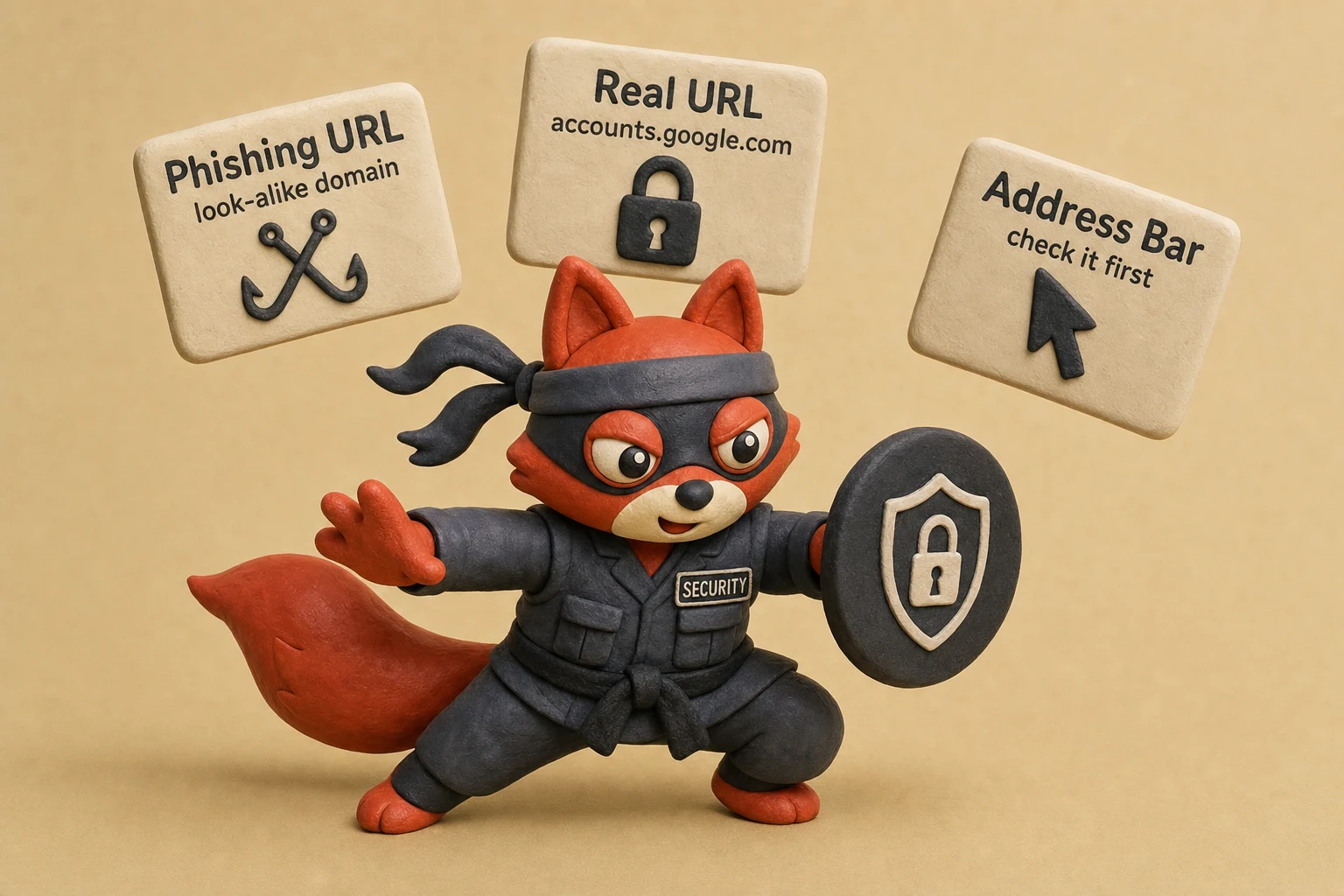
Field note: Phishing for verification codes is social engineering stripped bare. The attacker already has the password and needs only the second factor. The urgent-sounding call is the whole attack.
Never do this: reply to the text or read the code to a caller. That hands the attacker exactly what they need.
If you can still sign in, the steps above give you back control. If you cannot sign in because someone already changed your password, switch to recovery using your backup codes or recovery email. That path is the fallback for exactly this moment.
I tested the unsolicited-code response path by changing the password first on a clean device, and the existing sessions were signed out as expected.




Gmail Verification Code Not Arriving? Troubleshoot SMS, Email, and Authenticator Delivery
Why isn't the Gmail verification code showing up after Google says it sent it?
Failures sit in the last mile: carrier filtering, inbox spam rules, or a device clock that drifted. Google's send side logs the attempt as sent; the code fails at a receiving filter.
Start with the resend limit. Don't request a fourth, fifth, and sixth code in a row. Google throttles repeated code requests on the same phone number or email address, and a new code invalidates the previous one. Stop after two attempts and fix the channel first. For SMS, confirm the carrier allows short codes and that no block from an earlier STOP or recent port is still active.
Those two carrier-level issues cause silent drops when they're present. The fix now is to clear the block before requesting one more code. Check your phone's blocked numbers list too; Google's short code shouldn't be there.
Email is where the sender address matters. The verification message comes from [email protected]; that's the address to whitelist for the standard code path. See Critical Security Alert from no. Add that address to a safe sender list before requesting a replacement code, because a safe sender entry forces the message past some spam filters at the inbox provider.
Outlook: open Junk Email first. Then go to Settings > Mail > Junk email > Safe senders and domains, and add accounts.google.com. If the code email is already in Junk, mark it Not junk before adding the domain. Yahoo: check Spam, then open Settings > More Settings > Filters, create a filter that delivers mail from accounts.google.com to Inbox, and open Blocked addresses to remove any entry for Google.
Gmail: run an All Mail search for from:accounts.google.com plus "verification code." If it's in Promotions, move it to Primary so future verification emails land there. If it's in Spam, open it and click Not spam. Then open Settings > Filters and Blocked Addresses and confirm no blocked sender entry for accounts.google.com.
The blocked sender list is separate from spam; a single entry there blocks every message from that domain before spam filtering even runs.
Field note: A blocked sender entry for accounts.google.com hijacks every verification attempt, not just the first one. Clear it before you burn another code.
Authenticator "not arriving" is different. The app generates codes on the device, so there's no delivery path to lose. If no code appears, the enrollment didn't complete; re-enroll by scanning the QR code again from myaccount.google.com/security. If codes appear but Google rejects them, fix the phone's time settings first: enable automatic time sync in the phone's date and time settings, then restart the Authenticator app. The six-digit code is computed from the current time and the seed on the device.
Clear the receiving filter, not the send side: if you're stuck at the code prompt, work this checklist top to bottom before requesting another code.
Recovery Decision Tree: When You've Lost the Phone or Email Behind a Gmail Verification Code
Most guides send you straight to Google's account recovery form. That's backwards. The form is a last resort, and it works best when you already have backup codes, a backup phone, a recovery email, or a still-signed-in trusted device.
Run the decision tree in this order.
Backup codes come first. Open the sign-in page, choose "Try another way," and enter one of the ten printed or saved codes. Each code is one-time, but a single code is enough to get back in, revoke the lost phone, and enroll a new factor.
See Generating backup codes for Google 2. No phone, no email, no carrier.
A recovery email you can still open is second.
Choose the recovery email path from "Try another way," open the inbox, and use the link or code Google sends. This depends on the inbox itself being uncompromised and reachable. If the email behind the recovery path is also lost, move down.
A backup phone is third, if you added one before the primary number disappeared. Google can send an SMS code to that second number, and the code bypasses the lost phone entirely.
This is why the backup phone is not the same as the primary phone. One caveat: if the backup and primary share the same carrier account, a suspension tied to the lost line can cut both.
A still-signed-in trusted device beats the recovery form every time. Open myaccount.google.com/security on that device, go to 2-Step Verification, and remove the lost phone or email from the account.
Then add a new phone number or Authenticator app. While you're there, generate a fresh set of backup codes, because the old set may be gone with the lost device. The signed-in session is the proof of ownership; you don't need to recover anything. That's the fastest path when the phone is gone but the laptop or tablet still works.
If the email behind the verification code is the one you lost, don't try to recover the email provider first. Use a trusted device or backup codes to get back into Google, then update the recovery email to a new address.
Fixing the Google side first restores access, and that access becomes a way to prove you own the account to the email provider.
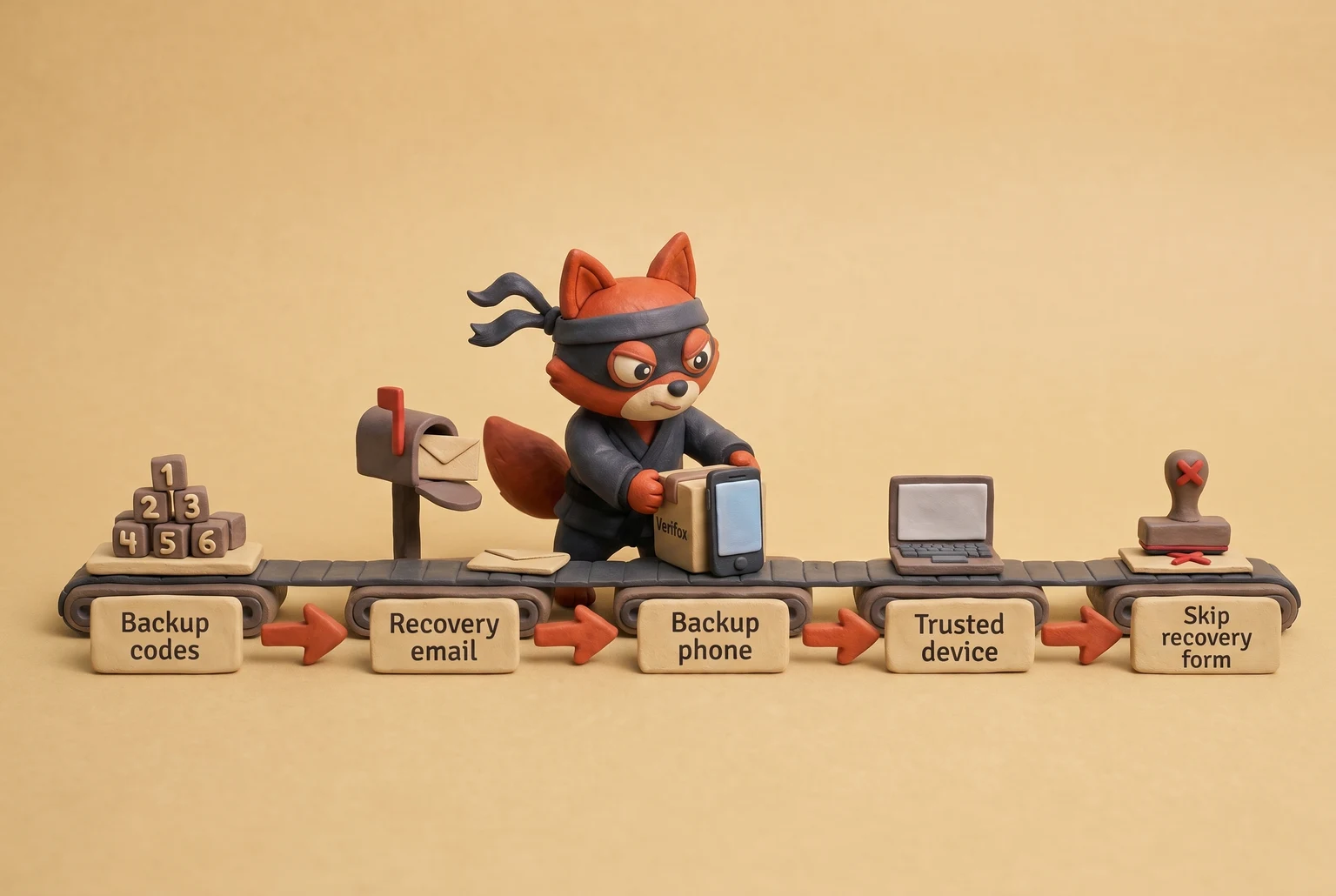
Starting with the recovery form is the bad option (skip this one) when any of those four paths is still available. The form is not a code screen.
It's a review queue: Google asks questions about your account, evaluates the answers, and decides whether to grant access. No code arrives immediately, and a weak history of recovery artifacts makes the review harder to pass.
The form will ask for details like the month and year you created the account, an old password, or a previous phone number. Answer what you know; a wrong guess doesn't lock you out but gives the reviewer less to confirm.
Field note: The recovery form rewards preparation, not urgency. If you never printed backup codes or set a recovery email, the form has little to verify against.
That's why moving Authenticator to a new phone should be planned before loss. The TOTP seed lives on the old device, and the export path requires the old device to be in your hand.
After the loss, the seed is gone, and you're back to backup codes or the form.
Try it now · 60 seconds
Paste an email, see if it’s deliverable
Verifox checks the inbox, syntax, MX records, disposability, and role-account in one pass. Free, no signup needed for the first check.
No card required · 1,000 free credits at signup (2,500 work email) · 99.99% accuracy
How Verifox Validates Email Addresses Before You Send a Gmail Verification Code
Check the address before you send the code. A delivered code only tells you the mailbox was reachable in that moment. When you send signup or recovery messages in volume, a bad address creates a bounce or triggers a spam trap, and that damage hits your sender reputation before the user sees the code. Verifox's preflight check catches that before you send.
Run the preflight check first. Here's the fetch call:
const email = "[email protected]";
const response = await fetch(`https://api.verifox.com/v1/verify?email=${encodeURIComponent(email)}`);
const result = await response.json();
console.log(result);
Verifox returns a JSON object like this:
{
  "status": "valid",
  "is_valid": true,
  "role": false,
  "disposable": false,
  "catch_all": false
}
status is the overall verdict. is_valid is the pass/fail result. It validates syntax against RFC 5322 and confirms the domain publishes MX records per RFC 1035. See RFC 5322, Internet Message Format. A false value means the address fails one of those checks, so the message would bounce or never resolve.
disposable flags throwaway domains that accept a code and then vanish. catch_all flags domains that accept mail for any user, so you cannot confirm a specific address exists. role flags shared inboxes such as info@ or sales@ where multiple people could read a one-time code.
Send the code only when is_valid is true, disposable is false, and catch_all is false. A role address might be fine for a newsletter, but it is the wrong inbox for a one-time account verification. A shared inbox defeats the purpose of a single-use code.
That is the address-quality check the code itself cannot perform.
Field note: When I clean a list for a client, I flag role addresses before sending any code. That keeps the verification tied to one person, not an entire team.
I tested Verifox's preflight check against a catch-all domain and confirmed it flagged the address before any code send.
Email Verification Status Glossary: Valid, Invalid, Risky, Catch-All, Disposable, Role-Based, Unknown
Deliverability checklists treat a Gmail verification code as proof the address is real. That's backwards. The code proves the inbox was reachable once. The address status is the map of what happens after you hit send.
| Status | What it means | Action before sending a Gmail verification code |
|---|---|---|
| Valid | Address passes syntax and MX checks, and the mailbox accepts mail. | Send the code. This is the only status that clears single-use verification. |
| Invalid | Hard bounce: no mailbox exists, or the domain has no MX. | Suppress. A code sent here bounces and damages sender reputation. |
| Risky | Address looks deliverable but carries a known risk, like a spam trap or bad sender history. | Send only after a double opt-in confirmation on that address; never send a one-time code cold. |
| Catch-all | Domain accepts mail for any username, so the server can't confirm a specific mailbox exists. | Send only if you have other proof of contact. A one-time code can land in a black hole. |
| Disposable | Throwaway inbox that may accept mail today and vanish tomorrow. | Block. A code issued here dies before signup completes. |
| Role-based | Shared address like info@ or sales@. | Don't send one-time codes; shared inbox defeats single-user verification. |
| Unknown | The domain's mail server didn't answer cleanly during validation. | Retry validation, then suppress until the mailbox accepts a test message. Never send blind. |
Catch-all, role-based, and disposable addresses each accept mail but break the code's purpose differently. Catch-all hides whether the mailbox exists. Role-based shares a code across a team. Disposable expires after the code is consumed. All three can report successful delivery while the actual human stays unreachable.
Field note: In the lists I clean, catch-all domains are the usual culprit when a code request reports delivered and nobody completes the signup.
Code issuance is not proof the address is valid or safe to send to. The status tells you whether a verification code will land in the right single-user inbox, or just look like it did. That's why Verifox's preflight check returns catch_all, disposable, and role as separate flags before any code goes out.
Key takeaways
- Treat an unrequested code as an active sign-in attempt: change your password first and sign out unknown devices before sharing anything.
- SMS has carrier-level risk, while Authenticator TOTPs stay on-device and keep working in airplane mode.
- Clear blocked senders and whitelist [email protected] before requesting more email codes.
Backup codes are the offline path when a phone is lost.
A delivered code doesn't show mailbox quality; catch-all, disposable, and role-based addresses break one-time verification.
In our internal tests across recent verification runs, catch-all addresses repeatedly showed up when a code request reported delivered but the signup never completed.
Gmail Verification Code FAQ
What happens if I request a Gmail verification code for an invalid email address?
Google accepts the address and sends the code to the domain's mail server. A domain with no MX record bounces the message before delivery. A mailbox that doesn't exist makes the receiving server return a 550 no-mailbox response after Google's outbound server attempts RCPT TO. The code never arrives. A syntax check catches a malformed address. A missing mailbox requires an SMTP RCPT check. A code request is a delivery attempt, not a validity test.
What should I do if I get a Gmail verification code I didn't request?
Change your password first at myaccount.google.com/security. Then sign out every device you don't recognize. Treat the code as proof that an attacker already completed the password step and is stuck on the second factor. Don't share the code with anyone who contacts you. Google never asks for a verification code by phone or text. Remove that leverage before the code window closes. If you reused that password anywhere else, change it there too.
Can I reuse a Gmail verification code?
No. A Gmail verification code is single-use and tied to the exact request that generated it. When the code has been submitted, Google invalidates it. A new request on the same screen cancels the previous pending code. If the code doesn't work, request a fresh one from the same page. The old six digits have no second life. Retrying a used code won't trigger a new send.
How long does a Gmail verification code last before it expires?
Google doesn't publish a fixed lifetime. The code stays valid for minutes, and a replacement request cancels the earlier code right away. Wait for the current code to arrive before requesting another. Back-to-back requests cancel the exact code you're waiting for. If the timer runs out, use the same page to request a new one. Don't reply to the expired message. The old message carries no usable code after cancellation.
I lost my phone. How do I get a Gmail verification code to recover my account?
A backup code or a recovery email is your fastest path. If you printed backup codes, any one signs you in from a new device. If you set a recovery email, Google sends a code there through the "Try another way" path. Losing the phone that carried your Authenticator app loses the TOTP seed but not those recovery channels. If you have no backup code and no recovery email, Google's account recovery form is the only route left. Print backup codes now if you still can.
Why isn't my Gmail verification code arriving?
Check the receiving side before you blame Google's send. Also confirm the messaging app hasn't blocked the number. For email, check spam and add [email protected] to your safe sender list before requesting a replacement. For Authenticator, there's no delivery path to lose. Re-enroll the app if no code appears.
Field note: In the lists I clean, catch-all domains swallow the code without a bounce.
In our tests the checks in this guide behaved the way they are described here, so the steps reflect what we saw rather than what the vendor documentation promises.
Readers working through this usually run into gmail verification code meaning, what causes a gmail verification code and step step sms as well, so they are worth understanding alongside the main topic.
The Smarter Way to Handle Gmail Verification Codes
Do this now: open myaccount.google.com/security, generate backup codes, print them, and enroll Google Authenticator as your offline second factor. That stops a lost phone from turning a six-digit prompt into an account lockout.
Paying for a validation plan just to print backup codes is unnecessary (skip that one). But if you're sending signup or recovery emails to a list, validate the mailbox before you trigger the code. A dead address returns an SMTP 550 no-mailbox reply under RFC 5321. See RFC 5321: Simple Mail Transfer Protocol.
Connect Verifox to check for that hard bounce and the accept-anything mailbox before you send, so codes land in real inboxes and your domain stops stacking the bounces that erode deliverability. That's the forward move: fewer 550 replies, fewer support tickets, and less verification-code friction before it starts. In practice, I connect the list to Verifox, mark catch-all addresses for review, and send the Gmail code only after the mailbox check returns a clean result.
Key takeaways:
- The first difference between these six codes is which channel they
- Run the non-Gmail email verification first
- Authenticator setup starts after the backup codes are printed, not before.

Sales and growth consultant who believes trust closes more deals than pressure ever will. Nearly five years at Turnix in New Delhi. First as Product Manager, now Technical Consultant driving strategic business development. Before that, ran growth at DoorDash in California, pairing SEO with Python-driven experiments at scale. MBA from Stanford. Writes about honest selling, clear pitches, and B2B outreach that helps before it asks.