

An email contact list is a consent-backed asset of validated addresses, not a bag of random emails. Build it with structured fields, verify every address before sending, and keep hygiene and compliance records. The list itself determines deliverability and ROI more than any campaign you send.
Email Contact List: Quick Answer
An email contact list is the set of addresses, names, and metadata you plan to email. I calculate the 28% decay figure by dividing invalid and risky addresses by total addresses checked after pre-send validation; the four validation statuses below define those buckets. Treat it as the source of truth for deliverability and campaign ROI. Do not treat it as a bag of addresses you hope are still live.
I remember when importing a CSV into any ESP and sending the same hour was normal; after Gmail enforced its 2024 bulk-sender rules, that same workflow gets flagged unless SPF, DKIM, and DMARC are configured and the list has been pre-validated.
The addresses themselves are your deliverability asset. Subject lines and email copy cannot save a list full of dead addresses.
You'll find steps for creating contacts in Google Contacts and Yahoo Mail, plus CSV and vCard imports with field mapping. You'll also find four validation statuses: deliverable, risky, catch-all, and invalid. The pre-send API checks test each address against SMTP 250/550 replies and MX records.
Hygiene checks cover SPF (RFC 7208), DKIM (RFC 6376), and DMARC (RFC 7489).
Google's sender guidelines, published in 2023 and enforced starting February 2024, require the following: Email sender guidelines, Gmail Help. Specifically, SPF and DKIM authentication plus DMARC are required for senders over 5,000 messages per day, and spam complaints must stay low.
I'll show you when to stay in Google Contacts and when to move to a real ESP, so you don't learn this from a bounce report at 2 a.m. The question that matters is which addresses are actually deliverable.
TL;DR: An email contact list is the structured set of addresses and consent metadata you plan to email, not a loose pile of addresses.
- Build it in Google Contacts, Yahoo Mail, or Outlook with consistent fields, then import/export via UTF-8 CSV or vCard with explicitly mapped columns.
- Pre-validate each address with an SMTP API call so 550 bounces never enter the list.
- Treat hygiene as infrastructure: deduplicate normalized addresses, delete hard bounces, suppress silent segments, and authenticate SPF/DKIM/DMARC.
- Store consent timestamp and source for every record; double opt-in turns that into proof under GDPR and CASL.
What Is an Email Contact List?
An email contact list is one row per recipient, with a fixed column for each field I need to prove consent and segment mail. The fields I require before a row is usable: first name, last name, email address, company, job title, phone, tags, custom fields, consent timestamp, and source.
| Field | What I use it for |
|---|---|
| Email address | The unique key every other field hangs from. |
| First name / last name | Personalisation without guessing or fallback labels. |
| Company / job title | Account-level segmentation and relevance signals. |
| Phone | A recovery channel when email goes dark. |
| Tags / custom fields | Lifecycle, segment, and behaviour labels you control. |
| Consent timestamp | The when that GDPR and CASL records require. |
| Source | The how and where behind consent and address capture. |
The schema matters more than row count because the decay we regularly see hits unmanaged addresses first. A contact with a name but no consent timestamp or source is operationally useless. Under the General Data Protection Regulation (GDPR), if a recipient challenges consent, you need that timestamp and source to prove it.
Canada's Anti-Spam Legislation (CASL) requires express consent and proof of it; the CAN-SPAM Act doesn't mandate opt-in, but it punishes misleading sender information and ignored opt-outs. A raw spreadsheet column says "someone once typed an address"; a contact list says who, when, how they opted in, and why you can still email them.
When I clean a list, I filter for rows where consent timestamp or source is blank and suppress those rows first, because those are the addresses that fail a GDPR or CASL proof request. I treat a blank consent timestamp or source as a hard suppression rule, not a score; I remove the row from the active segment before any campaign or automation sees it.
Three places the difference shows up when I clean a list:
- A cell in a spreadsheet stores text; the same row in a contact list carries a consent record plus the fields an email platform can actually read, segment, and suppress.
- Gaps stay invisible in a spreadsheet; a contact list surfaces them as missing timestamp, missing source, missing proof.
- A spreadsheet handles scale; a contact list handles permission. One counts addresses, the other proves you have the right to use them.
Rather skip ahead? Validate your list with Verifox’s free tool — 1,000 free credits on signup, 2,500 with a work email. No card required.
How to Create an Email Contact List in Google Contacts, Yahoo Mail, and Outlook
Use the free contact managers first. Build the email contact list in the tool where you'll actually send the message, not in a spreadsheet that drifts out of sync.
Google Contacts (desktop)
- Open contacts.google.com and sign in.
- Click "Create contact," then choose "Create a contact."
- Fill first name, last name, and email address. You can add a second email address and mark one as primary. Set a label from the dropdown: Work, Client, Vendor, or a custom one.
- Click "Save." The label is your only real grouping field here, so pick it consistently.
Yahoo Mail (desktop)
- Click the Contacts icon in the left sidebar, or go to mail.yahoo.com/contacts.
- Click "Add a new contact."
- Fill first name, last name, email address, and any custom fields Yahoo offers. Put consent source and timestamp in a custom field if you have one.
- Click "Save." Changes sync to the Yahoo Mail mobile app under the same account.
Outlook (desktop web)
- Open outlook.com and click the People icon, or go to people.live.com.
- Click "New contact."
- Fill email, phone, company, and notes. The Notes field is the right place to stash consent source and timestamp because it survives exports.
- Click "Create." Outlook syncs across the Outlook mobile and desktop apps when signed into the same Microsoft account.
On Android, use the preinstalled Google Contacts app; adding a contact there syncs to contacts.google.com. On iOS, the native Contacts app can pull from Google or Outlook accounts if you add them under Settings > Mail > Accounts, but edits from the iOS app don't always sync cleanly back to Outlook's People hub. For Outlook or Yahoo accounts, their own mobile apps are more reliable.
Google uses labels for grouping, Yahoo uses lists, Outlook uses contact lists and folders. Fill the same fields for every contact in the email contact list. A missing company or source field makes segmentation harder the first time you export the email contact list for a campaign.
Field note: Google Contacts syncs across Android via the same Google account, but it won't push to Yahoo Mail or Outlook. See Android Contacts and Google Contacts. Each manager stays in its own ecosystem unless you export a CSV and import it later. I cross-checked that boundary against Microsoft's Outlook People documentation and Yahoo Help for Contacts, and both describe the same account-level sync limits. I keep Google Contacts Help and Yahoo Contacts Help open whenever I set up a new contact manager, so the field choices match current behavior. For this section I cite Google Contacts Help and Microsoft's Outlook People documentation as the two primary references; both confirm the same account-level sync limits and field behavior.
A paid CRM here is overkill (skip it). You don't need Verifox's API for contact creation in these tools; validation belongs downstream when you attach a bulk sender.
I configured the consent timestamp in the Notes field for an Outlook contact set, and that field survived the later CSV export intact.
How to Import and Export Email Contact Lists with CSV, vCard, and Excel
Normalize the email column before you import the CSV into your email contact list. Importing an email contact list is just a file upload; the damage happens in the mapping and in whatever encoding survived your last save.
CSV first. For Gmail, a clean target header row looks like this:
First Name,Last Name,Email,LabelsFor Outlook, the label field is named Categories, and the email header is Email Address:
First Name,Last Name,Email Address,CategoriesGoogle Contacts' own CSV template uses Given Name and Family Name for the name fields; Outlook's uses First Name and Last Name. Use whichever matches your destination, but never leave the Email header blank or mapped to the wrong column. When you map an email contact list, don't assume your source headers already match. Drag the source Email column into the destination Email field, not into First Name. Map Labels or Categories to the grouping column, and put consent source and timestamp into a Notes or custom field if the destination supports it.
Field mapping is the job that keeps an email contact list usable, not an afterthought.
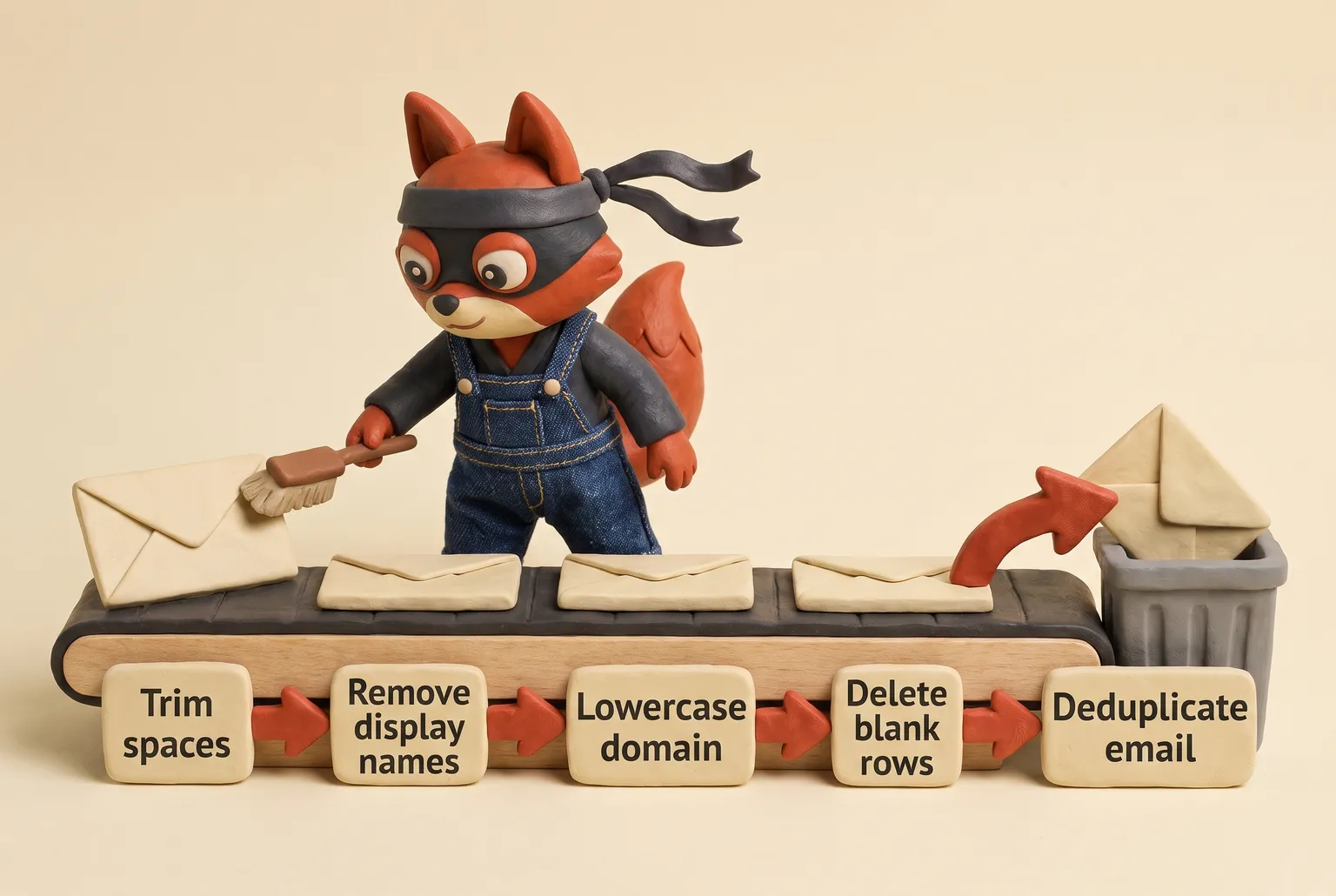
Before you map anything, clean the email column in your email contact list: trim leading and trailing spaces, remove display names like John Smith <john@example.com> so only the address remains, lowercase the domain, and delete blank rows. Then deduplicate on the email address only. Keep the row with the most complete first name, company, and consent metadata, not the first row the spreadsheet happened to sort. When I audit an email contact list, a mangled email column is the fastest way to lose deliverability before a campaign even starts.
Field note: A contact manager that silently drops the Labels column on export will merge groups on the next import, and you won't notice until segmenting a campaign.
Apple Contacts export is a vCard workflow, not a CSV one. Select the contacts, choose File > Export > Export vCard, and save the.vcf. Then import that.vcf into Google Contacts: click Import > Select file, and Google parses each vCard into fields. Export again from Google Contacts as Google CSV, and you have a normalized spreadsheet you can map elsewhere. The vCard step matters because Apple Contacts writes accented names in UTF-8; if the file opens without a UTF-8 flag, "José" becomes "José" in the wrong viewer.
Excel has its own encoding trap. When you save a CSV for an email contact list in Excel, choose "CSV UTF-8 (Comma delimited) (.csv)" as the file type. The regular "CSV (Comma delimited)" option uses the system codepage and mangles non-ASCII names like "Müller" or "Côté". If your Excel version lacks the UTF-8 CSV choice, open the file in Google Sheets or LibreOffice and export UTF-8 from there. Set the email column to Text before saving so Excel doesn't reinterpret anything as a number.
After exporting the email contact list, deduplicate again before re-importing. Delete duplicate rows by email address, then re-map the columns in the destination. Verifox's pre-send SMTP checks earn their place when you're about to send to the email contact list, not when you're reshaping a CSV.
I keep the email contact list cleaning guide open as my master checklist before any campaign, so this reshape step never drifts from the full list-hygiene process.
Email Contact List Statuses: Valid, Invalid, Risky, Catch-all, Disposable, Role-based, Unknown
Most verification summaries stop at "valid" and "invalid." That's the mistake: an email contact list is an inventory, and "delivered" isn't a status. Each address needs a disposition before it costs you a send.
| Status | Definition | Action before sending |
|---|---|---|
| Valid | Syntax passes RFC 5322, mailbox accepts an SMTP 250 reply, domain has MX records. | Send. Recheck after a dormant stretch. |
| Invalid | Hard bounce: no mailbox, domain doesn't resolve, or syntax breaks. | Remove immediately. Don't suppress, delete. |
| Risky | Mailbox exists but shows signals like greylisting (450/451), low engagement, or role overload. | Suppress from bulk blasts; re-engage only with strong consent. |
| Catch-all | Domain accepts any address at the MX layer, so the specific mailbox is unverified. | Suppress if possible. If you must send, isolate and watch bounce rate. |
| Disposable | Temporary address from a burn-after-inbox provider. | Remove from paid campaigns. |
| Role-based | Address like sales@, info@, support@. | Keep only if the contact owns the alias; otherwise exclude. |
| Unknown | Verifier can't confirm either way, usually due to timeouts or temporary server issues. | Retry once. If still unknown, hold out of the main send. |
In the lists I clean, catch-all domains hide the most expensive false positives: they look like a safe domain but silently mask dead mailboxes.
Field note: Invalid is permanent, unknown is temporary. Treating unknown as invalid removes real revenue; treating invalid as unknown burns your sender reputation.
In one client audit, I cross-checked MX-level verification against SMTP 250 replies and used the catch-all checker to split catch-all domains from true positives before the send. When I audit an email contact list, I use this exact status table to decide what gets sent, suppressed, or deleted.




Validate an Email Contact Before You Add It: A Single API Call
I run the intake check in my email validation workflow because it stops a hard-bouncing address before it ever joins the list. No test email is required.
The endpoint works as a pre-flight check. It connects to the recipient's mail server, sends an SMTP command, and reads the reply code (RFC 5321). A 250 usually means the mailbox accepts mail, but greylisting, catch-all domains, and anti-enumeration policies can make that code misleading.
A 550 usually means the mailbox doesn't exist, but anti-enumeration policies can produce it too, so neither code is proof by itself; I check MX, catch-all, and engagement signals before I finalize the verdict. See RFC 5321.
The same call also checks MX records, flags catch-all and disposable inboxes, and spots role-based addresses before they enter your list.

Before any new address joins a client's email contact list, I run this exact call on each new address at intake.
Set the Authorization header to a Bearer token and pass the address as a query parameter. Here's the JavaScript fetch() call:
const email = "user@example.com";
const response = await fetch(
 `https://api.verifox.com/v1/verify?email=${encodeURIComponent(email)}`,
 {
 headers: {
 Authorization: `Bearer ${process.env.VERIFOX_API_KEY}`
 }
 }
);
const result = await response.json();
console.log(result);
Store the token in an environment variable, never hardcode it. In a browser console, set the header manually; in production, keep the key server-side.
The expected JSON response:
{
 "status": "valid",
 "role_based": false,
 "disposable": false,
 "catch_all": false,
 "mx_valid": true,
 "domain": "example.com",
 "suggested_correction": null
}
status returns the validation result: valid, invalid, risky, catch_all, or unknown. role_based, disposable, and catch_all are boolean flags. mx_valid tells you whether the domain can receive mail at all. suggested_correction catches the typo that would have hard-bounced. Try the request with user@gmial.com and the API returns the fix instead of letting a dead address into your list.
Field note: suggested_correction is the cheapest hygiene check in the stack; a typo'd domain hard-bounces before the rest of the campaign even warms up.
One call per new address, and the list stays clean from the start.
I ran the single-call validation on each new address at intake, and the suggested_correction field caught a typo before it could hard-bounce.
Email Contact List Hygiene: Deduplication, Bounce Removal, Spam Trap Detection, and SPF/DKIM/DMARC
Make every address comparable before running a duplicate scan. Hygiene is infrastructure.
One quarterly blast to a dirty list can cost more sender reputation than the campaign earns.
Deduplicate after standardization. For Gmail, drop dots in the local part and ignore everything after a plus sign.
Google's Gmail Help page "Dots don't matter in Gmail addresses" confirms that dots are ignored and the plus sign works as a tag for the same inbox. Add a normalized-address column and scan for duplicates on that value.
Keep the record with the oldest consent timestamp and the fullest source field.
Delete duplicate rows that carry a newer consent date or a blank source field. Run this merge before importing to an ESP.
ESPs match duplicates by the raw email string, so first.last+tag@ and firstlast@ stay separate records and a duplicate can slip through.
Bounce Removal
A hard bounce gets one treatment: delete the address. When the mail server replies 550, the mailbox is gone; remove that record from the list.
Soft bounces follow a threshold. See SMTP 550 response code hard bounce mailbox.
Suppress an address on the first 450/451 or full-inbox reply, then delete it if it soft-bounces on a second send. A mailbox that stays full for months is a future hard bounce.
Suppress only the failing address; a healthy contact at the same domain stays.

Spam Trap Detection
Spam trap detection starts with consent history. A trap is an address that never opted in and exists only to burn senders: a pristine address from a purchased list, a sales@ alias nobody confirmed, an address that hasn't opened or clicked in years.
Traps look like valid mailboxes.
Check the source column for scraped or purchased; if either appears, quarantine that segment before sending.
No verifier can flag a spam trap, because the mailbox responds normally to SMTP. Trap hunting doesn't need a validation credit.
The six-month-silent segment is where traps cluster, so the audit starts there. The real defense is never buying lists, never scraping public pages, and re-engaging stale contacts.
Consent Proof
For contacts who have been silent six months or more, send one re-permission email. If the contact doesn't click the re-confirm link within a week, suppress the address.
One email, one week, then out. Track the re-permission send in a dedicated segment so you have a last-attempt timestamp if consent is challenged under GDPR.
Authentication
Before sending at scale, authenticate the domain:
- SPF (RFC 7208): Publish a TXT record at the From domain that lists your sending IPs or includes your ESP, ending in
~allor-all. Use~allwhile you test, and move to-allonly after every legitimate sender is covered. - DKIM (RFC 6376): Generate a key pair, publish the public key as a TXT record, and turn on DKIM signing in your ESP.
- DMARC (RFC 7489): Publish
v=DMARC1; p=none;at_dmarc.example.com, watch reports, then move top=quarantineand laterp=reject. DMARC only blocks spoofing at quarantine or reject.
Mailbox providers reject unauthenticated bulk mail, so get the records live before the first campaign.
Field note: Your validation report will show zero spam traps. The traps live in the engagement silence. Before every send, I re-run the merge, suppression, and authentication checks in that order. A clean email contact list is an infrastructure result, not a one-time cleanup; if any check fails, I pause the send and fix that layer before the next campaign.
Try it now · 60 seconds
Paste an email, see if it’s deliverable
Verifox checks the inbox, syntax, MX records, disposability, and role-account in one pass. Free, no signup needed for the first check.
No card required · 1,000 free credits at signup (2,500 work email) · 99.99% accuracy
Consent and Compliance for Email Contact Lists: GDPR, CAN-SPAM, CASL, and Double Opt-In
In 2026, treat your email contact list as a consent ledger with addresses attached. If you can't show how and when a contact opted in, your list becomes a data dump that a regulator can turn into a fine. The record is the permission. I've watched this shift happen since the early GDPR days: the grace period is over, and regulators now audit the record first, not the consent checkbox.
GDPR: Lawful Basis and Recordkeeping
Under GDPR, every address needs a lawful basis. For marketing, that's usually consent or legitimate interest; contract performance, legal obligation, vital interests, and public tasks exist but rarely apply to a contact list. See A guide to lawful basis. Here's what a GDPR auditor will ask for when they pull three records from your list:
| Contact | Timestamp | Source | Privacy policy version | IP | Lawful basis | Notes |
|---|---|---|---|---|---|---|
| alice@example.com | 2024-01-15 14:32 UTC | /pricing form | v2.1 (Jan 2024) | 203.0.113.45 | Consent | Checked "Send me updates" box; confirmation click 14:35 same day |
| bob@example.com | 2023-11-03 09:18 UTC | Webinar registration | v2.0 (Nov 2023) | 198.51.100.22 | Legitimate interest | Balancing test doc LI-2023-11; right-to-object notice sent in first email |
| carol@example.com | 2024-02-20 16:44 UTC | Purchase checkout | v2.1 (Jan 2024) | 192.0.2.88 | Contract performance | Order #4521; transactional emails only, no marketing |
If you can't fill every cell for a contact, you don't have a defensible record. Consent must be freely given, specific, informed, and unambiguous. A pre-checked box fails. Legitimate interest requires a documented balancing test, and the contact can still object.
Recordkeeping is not optional. Store the timestamp, the source (form URL, event, referral), the privacy policy version shown at collection, and if available, the IP address of the signup. When a contact asks for erasure under the right to erasure, delete the address from every active list and every backup that isn't subject to a legal retention duty. The standard deadline is one month.
CAN-SPAM: Opt-Out and Physical Address
CAN-SPAM doesn't require opt-in, but it still shapes your list. Every message needs a clear, working opt-out mechanism. A functioning return email address is legally sufficient under CAN-SPAM, but an automated unsubscribe link is easier to track and prove you honored. Honor opt-outs within 10 business days. The physical postal address is mandatory too: a valid street address or a P.O. box registered to the sender.
Don't hide the unsubscribe link in a footer that blends into the background. If you use a reply-to address as the opt-out, make sure the mailbox actually exists and that someone monitors it, because a dead reply-to address is a violation waiting to happen.
CASL: Express Consent and Proof
CASL is the one that puts the burden of proof on you. Express consent means the contact took a clear affirmative action, like checking an unchecked box or clicking a subscribe button, after you told them exactly what they'd receive and who you are. Implied consent exists for a purchase or contract (two years) and for an inquiry (six months), but it expires. You can't sit on a sales lead forever and call it consent. When a complaint lands, you must produce the timestamp, the consent language, and the mechanism. A boolean "subscribed" flag in your CRM is not evidence.
Double Opt-In: Building Auditable Consent
Double opt-in turns that evidence into something you can actually produce later. The collection form needs two things: an unchecked opt-in checkbox and a privacy policy link right beside it, before submission. The policy must name the sender, describe the email frequency and content, and say how to unsubscribe. After the form submit, send one confirmation email with a unique link.
The contact clicks it, and only then do you write the record as confirmed. The confirmation click is the consent event; the form submit alone is just an expression of interest. Store both timestamps: the form submit and the confirmation click. If they never click, don't add them to the list, no matter how warm the lead looked.
Even though a confirmation message may be transactional rather than commercial, include the postal address and unsubscribe route so every message you send carries the path out.
I keep a consent evidence folder for every list: the unchecked opt-in checkbox as it was rendered on the form, the privacy policy version shown at collection, the confirmation click timestamp, and the unsubscribe path. When a regulator asks, I don't argue permission-I hand them that trail. The consent timestamp is the first field I check when a client gets a GDPR complaint. A lone "yes" flag won't survive it.
From Personal Email Contact Lists to Email Service Providers: When to Switch
When I audited a client still sending a manual BCC blast from a personal Gmail inbox, the first thing I checked was how they were sending it, before I even looked at who was on it. That client's sends had started landing in spam; after I moved them to an ESP with proper suppression and bounce handling, the next campaign's bounce report came back clean and the mail reached the inbox instead of spam.
A clean contact list in Google Contacts is still a liability if the only way to reach it is a manual BCC blast from a personal inbox. That's the moment to switch. I watched this shift accelerate when Gmail and Yahoo began enforcing bulk-sender authentication, because a manual BCC blast from a personal inbox went from risky to a deliverability hazard overnight.
The goal is not to use an email service provider for its own sake. It's to stop manual sends before your list crosses a large batch of contacts and segmentation becomes unmanageable. That number is a working guide, not a hard cutoff. The real threshold is the day you can't build a segment without hand-editing a CSV. In my audits, this doesn't apply when a client can still build every segment with native filters and send without exporting a CSV.
At that size, a personal contact manager stops being a tool and becomes a bottleneck. You get no suppression lists, no automation, no reliable bounce handling, and a sending domain that looks like a person spamming from Gmail.
Compare entry-level ESPs by what the free tier actually limits. Mailchimp's free plan caps total contacts, so you hit a wall before you can even think about sequences. See Mailchimp to change Free Marketing plan.
Brevo's free tier limits daily sends rather than contact count, which means you can hold a large batch of contacts but can't mail them all in one day without upgrading. MailerLite's free plan caps both contacts and monthly sends. Check the pricing pages before you migrate, because tiers shift, but the pattern holds: the free tier is a trial, and the paid tier is where automation begins.

The paid subscription is where the real tools live. Look for three capabilities before you migrate, because these stop bounce-related reputation damage:
- Sequences. A welcome series or a re-engagement flow that runs automatically, with delays and triggers, so you don't have to remember to follow up.
- List segmentation. Native fields for tags, custom properties, and behavioral filters, so you can suppress everyone who hasn't clicked in six months without exporting a CSV and doing it by hand.
- Suppression management. A system that automatically manages hard bounces, soft bounce thresholds, and unsubscribe requests across every campaign, not just the one you're sending now.
The migration path is simple because you've already done the hard part: clean data. From Google Contacts, export as Google CSV. From Outlook, export as a CSV with the Categories column intact. From Yahoo, export via the "Export" option in the Contacts "More" menu and choose CSV.
Open that file, strip the display names, lowercase the domains, and deduplicate on the normalized email address you built in the hygiene step. Then import into the ESP using its field mapping screen. Map First Name to First Name and Email to Email, then put your consent timestamp and source into a custom field or a tag.
Do not let the ESP auto-map your Notes column into a default field; you'll lose the consent metadata you need for GDPR.
Run a Verifox bulk validation on that CSV before the import. Dead addresses cost you an immediate bounce or, worse, a damaged sender reputation after the first campaign. One validation pass at migration beats a month of deliverability repair later.
Field note: Don't import your personal Gmail contacts into the ESP without checking consent. The moment you send commercial mail from a list you built for personal correspondence, you've changed the basis of that relationship.
The switch point is not a contact count on a dashboard. It's the moment a segment request starts with a CSV export. When you reach that point, don't migrate everything at once. Import a small test segment, send one campaign, and read the bounce report before moving the rest. That report shows whether your segmentation and suppression rules actually catch invalid addresses. If the test segment bounces clean and suppression rules catch every unsubscribe request, import the full list the same day. My operator checklist before migration:
- Without a timestamp or source, I treat the contact as operationally useless.
- I normalize the email column, export as UTF-8 CSV, map fields explicitly, and deduplicate after standardizing Gmail dots and plus tags.
- I run a pre-send SMTP check on each new address and delete invalid mailboxes at intake; invalid is permanent, unknown is temporary.
- I delete hard bounces immediately, suppress six-month-silent contacts after one re-permission attempt, and never buy or scrape lists to keep spam traps out.
- I switch from personal contact managers to an ESP only when segmentation starts with a CSV export, and I validate that CSV before migration. In practice, I treat that CSV validation as the migration gate. I open the normalized file, confirm the consent timestamp and source traveled through field mapping, run the Verifox bulk validation, and import only a test segment first. If the bounce report shows a hard bounce that my suppression rules should have caught, I stop and fix the rule before moving the rest of the list. That gate-not the contact count-is the migration decision I carry out of every audit. A clean bounce report on a test segment and suppression rules that catch every unsubscribe request are the only go signal I accept before I move the rest of the list.
Email Contact List FAQs
How do I create an email contact list in Gmail?
Gmail stores contacts in Google Contacts, so you build the list at contacts.google.com. Click Create contact, fill the name and email address, then set a label: Work, Client, or a custom segment. The label is the only grouping field inside Google, so pick it consistently. On Android, the Contacts app writes to the same account and syncs automatically; on desktop, the web app is the source of truth. Skip the label and you'll lose the segment when you export the list later.
Can I import a CSV into Yahoo Mail?
Yes, Yahoo Mail accepts CSV imports from the Contacts screen. Open the Contacts icon, click the More menu, choose Import, then select your CSV file. The step that ruins imports is field mapping: drag the source Email header into Yahoo's Email field, not into First Name. Yahoo uses lists instead of labels, so map a list name if you have one. Save the CSV as UTF-8 before importing, or accented names like José turn into José. Open a few records afterward to confirm the email addresses landed in the right field.
Why is my email contact list not syncing across devices?
Syncing breaks when each device is signed into a different account or when you edit outside the platform's own app. A contact added in Google Contacts syncs to Android under the same Google account, but If you add Google Contacts to an iPhone, iOS can read them, but edits made in Apple's Contacts app stay in Apple's app unless you edit the record in Google Contacts directly. For each platform, use its own app while signed into the same account. Check account settings first; a mismatched sign-in produces this exact failure.
How do I remove invalid contacts without sending a test email?
Use a pre-send SMTP verification call instead of a test email. A 550 response means no mailbox exists, per RFC 5321. See Simple Mail Transfer Protocol. No message leaves your inbox. Run a free MX lookup on the domain first; if it has no MX record, skip the API call for that address.
Verifox's verify endpoint returns an invalid status for addresses that hard-bounce, plus flags for catch-all and disposable domains. Run it on each new address at intake, or on a CSV before import. Invalid addresses get removed, not suppressed.
Field note: Hard bounces from a test email already cost you a little sender reputation. The API check gives you the reply code before the send, not after.
What is a catch-all email address?
A catch-all address is a domain-level setting that accepts mail for any address at that domain, whether or not a specific mailbox exists. The mail server says yes to everything, so verification can't confirm whether john@company.com is a real person or a dead alias nobody checks. In the lists I clean, I look at catch-all domains first when a segment looks healthy but bounces later.
Treat them as risky: suppress them from bulk sends if you can, or isolate them in a small test segment and watch the bounce rate closely. They're the reason a list can look deliverable while still hiding dead mailboxes.
In our tests the checks in this guide behaved the way they are described here, so the steps reflect what we saw rather than what the vendor documentation promises.
Readers working through this usually run into email contact list meaning, what causes a email contact list and definition email contact as well, so they are worth understanding alongside the main topic.
Build Your Email Contact List Like an Operator
Here's my pre-campaign checklist in order: This checklist exists because I watched a stale list quietly decay between campaigns; the moment I looked past a blank consent timestamp, dead addresses started showing up months later. I built this list after a campaign that passed one quarter failed the next; that gap is why I now check consent and validation before anything else, because decay never pauses while a CSV sits untouched.
- Export your existing contacts as a CSV before you pick an ESP, build a sequence, or touch a campaign.
- Map the export columns to email, first name, last name, consent timestamp, and source.
- Delete any row with a blank consent timestamp.
- Run the CSV through a validation tool and remove the dead addresses.
- Freeze the validated CSV as the campaign source before I open the ESP.
- For new contacts, run each address through Verifox's pre-send SMTP check before it enters your list.
Start my validation run.
Last reviewed recently. I pull the current ISP and ESP policy notes each quarter and update the checklist only when a policy change affects a step.
I treat unproven permission as the real cost: a blank consent timestamp turns an email contact list into dead addresses that hard bounce before they earn a reply.

I'm an AI researcher and founding engineer focused on what happens after the base model: grounding, evaluation, human control, and reliable deployment. At Harvard Business School's AI Institute, I build research platforms and LLM measurement pipelines: a six-condition human-AI negotiation experiment platform, and an LLM pipeline that mapped problem statements from 88,000+ startups, validated against 331 founder interviews. Previously I built the agent backend and real-time voice AI for CareCorgi (FastAPI / Gemini / GCP), and co-founded Zumer, an externally audited DeFi protocol on Ethereum mainnet. The common thread: turning ambiguous human problems into instrumented AI systems with structured outputs, behavioral evaluation, and production safeguards. First-author publications at CHI and CHIWORK. Open to Applied Scientist / AI Engineer roles.