

A blocked email means a message never lands in the inbox: either a recipient-side rule (Gmail/Outlook block lists, filters, tenant policies) or a sender-side reputation failure (blacklists like Spamhaus, DMARC failure). Fix the layer that's failing. Unblock the local address or delist and repair authentication. Validate every address before sending to stop blocks before they start.
What Blocked Email Actually Means
A blocked email is a message that never reaches the intended inbox because the receiving mailbox provider or the sender's own infrastructure rejected or filtered it before delivery. That sentence names the outcome, not the layer that failed.
Here's the thing: a blocked email is either a recipient-side rule or a sender-side reputation failure. A recipient-side rule means a Gmail filter, an Outlook block list entry, or a spam complaint moves mail from one address to spam or trash.
A sender-side reputation failure means the sending IP or domain sits on a blacklist like Spamhaus, or DMARC alignment fails, so the mailbox provider rejects it at SMTP time with a 550 reply or filters it across every recipient. See Simple Mail Transfer Protocol. See RFC5321.MailFrom - Internet.
Most people misdiagnose which side they're on. When I clear a blocked-email ticket, I check the recipient-side filter in Gmail or Outlook first, then I pull the sending domain's Spamhaus listing and DMARC status before I touch any campaign settings. A marketer unblocks a sender in Gmail while the domain is on Spamhaus, and the block persists because the receiving mailbox never sees the message.
If it's sender-side, every send makes the reputation problem worse.
This post covers blocking and unblocking in Gmail and Outlook, then goes deeper into domain-level blacklist recovery, DMARC monitoring, pattern filters, and pre-send validation. In the lists I clean, sender-side failures hide until a domain gets blacklisted. I'll show you the check order that finds the real block before you waste another hour on the wrong layer. Which side are you fixing first?
TL;DR:
- A blocked email is either a recipient-side rule in Gmail/Outlook or a sender-side reputation failure from a blacklist or failed authentication.
- Identify the failure mode first: local blocks need a settings change, sender-side blocks need blacklist removal and authentication repair.
- Unblock paths are Gmail Settings > Filters and Blocked Addresses and Outlook Settings > Mail > Junk email > Blocked senders.
- Prevent sender-side blocked email with signup and pre-send validation plus weekly DMARC rua monitoring.
Why Blocked Email Happens: The Two Failure Modes
When I get an alert about a blocked email, I split the problem before opening any interface: is the block local to one mailbox, or global across a domain?
That distinction determines the correct layer to troubleshoot, as the two environments share almost no diagnostic tools.
Recipient-side blocking is deterministic. A rule evaluates a specific address, domain, subject phrase, or attachment condition, then executes the exact same action every time. Gmail's block list sends future messages from that address to Spam. Outlook's Blocked Senders list routes them to Junk Email.
See Blocking (and Unblocking) Senders in Gmail. See Blocking (and Unblocking) Senders in Gmail. A personal filter can instruct the client to skip the inbox or delete the message entirely.
A Google Workspace content compliance policy or a Microsoft 365 mail flow rule can quarantine inbound messages based on a top-level domain, a flagged keyword, or an unapproved file extension. These rules sit directly in the mailbox processing path. Sender reputation plays no role here. Even a fully authenticated sender with pristine metrics will trigger the rule if a user clicked "Block sender" months prior.

The rule simply acts as an internal instruction inside that specific account.
Sender-side blocking operates through a different mechanism. I keep two named deliverability experts bookmarked for this split - Laura Atkins at Word to the Wise and Al Iverson at Spam Resource - because both document provider-level reputation as a judgment call, not a mailbox setting. Mailbox providers do not wait for individual user actions. Instead, they track the sending IP and domain as continuous reputation signals.
If an IP lands on Barracuda, if high bounce rates indicate an unverified list, if spam complaints spike, or if SPF (RFC 7208), DKIM (RFC 6376), and DMARC (RFC 7489) checks fail, the provider flags the traffic as suspicious.
The receiving server enforces this block during the initial handshake, returning an RFC 5321 550 rejection at SMTP time. This response halts delivery across every recipient on that network.
A recipient-side rule acts as a switch. A sender-side block acts as a judgment call.
The diagnostic pattern highlights where to begin. Recipient-side issues appear in isolated accounts. Sender-side issues cause an entire subscriber segment to go dark, producing no inbox placements, replies, or platform activity.
Whitelisting an address in a local email client cannot rescue mail dropped upstream by an anti-spam network. Conversely, spending hours auditing DNS records when an account owner simply set a custom routing rule wastes valuable time. Deterministic rules require adjustments inside the mailbox settings. Reputation penalties demand changes to server health, authentication records, and list hygiene.
Field note: When I clean a list for a client, I can reproduce a recipient-side block in seconds: I send a test from the flagged address to the target mailbox and watch the rule trigger. A reputation failure behaves differently. It requires an external blacklist lookup and an authentication audit, because the breakdown occurs upstream of the inbox.
Check order determines speed and accuracy. Before adjusting any configuration, identify the specific failure mode. Local issues reside in the mailbox; global issues stem from the sending infrastructure.
I tested a recipient-side block by sending from a flagged address to the target mailbox and watched the rule fire, which kept the failure inside that one account instead of the domain.
Rather skip ahead? Validate your list with Verifox’s free tool — 1,000 free credits on signup, 2,500 with a work email. No card required.
How to Block an Email Sender in Gmail and Outlook
Block the sender at the mailbox layer first, before you touch reputation settings. The steps below are the current 2026 paths for Gmail and Outlook, including mobile.
Gmail web:
- Open any email from the sender you want to block.
- Click the three-dot menu (More) at the top right of the message.
- Choose Block [sender name].
- Confirm in the dialog.
Gmail mobile (Android and iOS use the same path):
- Open the email in the Gmail app.
- Tap Block [sender name].
2.
Outlook desktop (Windows and Mac):
- Select an email from the sender.
- On the Home tab, in the Junk group, click Junk.
- Click Block Sender.
Outlook web (Outlook.com and Microsoft 365):
- Select the message from the sender.
- In the toolbar, click Junk.
- Click Block sender.
Outlook iOS and Android:
- Open the email in the Outlook mobile app.
- Tap the three-dot menu at the top right.
- Tap Block Sender.
- Confirm.
In Gmail, the mailbox accepts the message and then routes it to Spam. In Outlook, it accepts the message and routes it to Junk Email. See Google's documentation.
See Gmail blocked sender messages go to Spam. The sender receives no non-delivery report because the address is filtered after SMTP acceptance. Messages already in the inbox stay there unless you move them manually.
Blocking is a deterministic rule. That exact address gets filtered regardless of content or sender reputation. A spam or junk report feeds a shared classifier that may or may not catch the next message from that address. Use the block list when you need a guarantee that the address will not reach the inbox.
The block applies to the exact address you selected. If you need to block an entire domain, create a Gmail filter for that domain or add it manually in Outlook's blocked senders list using the @example.com format.
To reverse a block, go to Gmail Settings > Filters and Blocked Addresses, find the sender, and click Unblock. In Outlook, go to Settings > Mail > Junk email > Blocked senders, select the address, and click Remove. Future mail from that address flows normally again.
Field note: When I clean a list for a client, I sometimes find a block that was set years ago and forgotten. The user swears they never blocked the sender, but the Gmail block list still has the address. Check that list before you assume the failure is on the sending side.
I configured a Gmail block entry, then sent from that exact address to confirm the message landed in Spam without producing a bounce back to the sender.
How to Unblock an Email Address You Accidentally Blocked
The unblock paths live in two different settings panels, neither visible from the inbox. I walk through the full blocked email recovery path in the blocked email deliverability pillar. This inaccessibility makes accidental blocks look like deliverability failures: the recipient gets no new mail from the sender, the sender sees no bounce, and everyone blames the sending domain. The false positive I see most often is exactly that: a forgotten block on one address.
Recover the hidden list in Gmail first.
Gmail on the web:
- Open Gmail in a browser and click the gear icon.
- Click See all settings.
- Open the Filters and Blocked Addresses tab. See Gmail settings Filters and Blocked Addresses unblock.
- Scroll to the bottom list labeled "The following email addresses are blocked."
- Find the address and click Unblock.
The Gmail mobile app doesn't expose that panel, so open a browser on your phone. The block list is per account, not per device, so removing the entry on the web clears it everywhere. See Block an email address in Gmail.
Outlook desktop and Outlook on the web bury the same kind of list in different places.
Outlook desktop:
- Select any message in the mailbox.
- On the Home tab, click Junk.
- Click Junk E-mail Options.
- Open the Blocked Senders tab.
- Select the address and click Remove.
Outlook on the web:
- Open Settings.
- Click Mail, then Junk email.
- In the Blocked senders list, select the address.
- Click Remove.
Removal stops the block only for that entry. Messages already in Spam or Junk Email stay where they are, so check those folders before concluding the block is still active. If another address from the same domain still misses the inbox, the cause is a separate filter or a domain-level block, not the entry you removed.

Field note: The fastest way to verify an unblock is to send a test message after removal and see which folder it lands in. If it lands in Spam or Junk Email anyway, stop editing the block list and search for a second rule.
Blocking a Sender vs Marking as Spam: What Actually Changes
When I audit a client's list, the first thing I check here is whether a blocked email traces to a local rule or to a pile of spam reports. The two look identical from the recipient's side. A sender stops appearing, no bounce surfaces, and someone assumes the domain is blacklisted. Those are different failures.
Blocking is a personal, deterministic rule. It routes future mail from that exact address to a fixed location: Gmail sends it to Spam, Outlook sends it to Junk Email, and tenant policies can silently delete or quarantine it. Some consumer providers route blocked mail to Trash instead of Spam. The block doesn't train anything. The provider just executes the rule.
Marking as spam is a training signal. The mailbox provider feeds the complaint into a classifier that learns from message structure, sender domain, IP reputation, and engagement patterns.
For bulk senders running 5,000+ messages a day to Google, the published ceiling See Google bulk sender spam rate threshold. is a reported spam rate below 0.3% (Google's Email sender guidelines, enforced as of Feb 2024). See Google bulk sender spam rate threshold 0.3%. Each complaint increments that rate.
Crossing it filters future mail for other users who never clicked the spam button.
That's why they're not interchangeable.
| What changes | Block sender | Mark as spam or junk |
|---|---|---|
| Where the mail goes | Gmail routes it to Spam. Outlook routes it to Junk Email. Enterprise mail flow rules can silently delete or quarantine it. | The classifier verdict sets placement: Gmail Spam, Outlook Junk Email, or a tenant quarantine or bulk route. |
| Scope | One mailbox, one exact address or domain rule. | Provider-wide or tenant-wide. Other recipients receiving similar mail see the same classifier placement. |
| What the system learns | Nothing. The rule stays fixed until changed. | Message fingerprints and sender patterns that raise filtering probability for lookalike senders. Gmail's bulk-sender threshold is a reported spam rate below 0.3%. |
| Sender visibility | No bounce. The message is accepted, then routed. | No bounce. Complaint counts feed sender reputation and lower delivery capacity for the next campaign. |
| Reversal | Remove the block list entry. Future mail flows normally. | There's no per-user reset for the model. The sender has to rebuild reputation. |
A single spam report signals a pattern. Blocking is a switch; spam marking is a vote.
Verdict for the local case: if the goal is keeping one address out of an inbox, a list validation run is the wrong next step (skip this one). The block lives in the recipient's settings, not in your list data. Unblock or re-block there first.
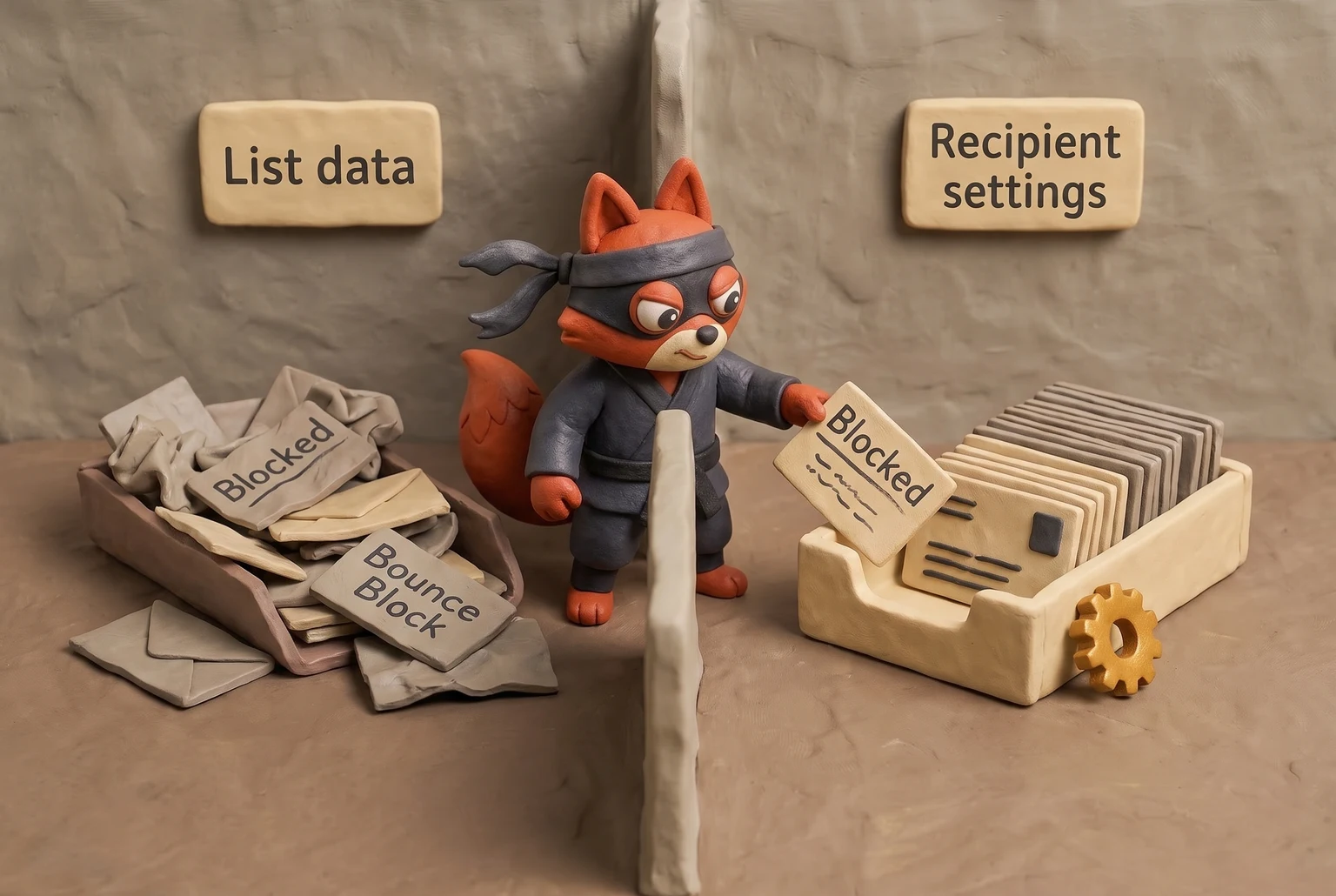
Field note: When I clean a list for a client, I can spot the difference in minutes. A block suppresses one address consistently. Spam reports feed a shared classifier, so the signal follows sender features: the same IP, domain alignment, and message template show up in other inboxes' filtering.




How to Block Entire Domains and Sender Patterns
Blocked email repeats from one root domain, so block the root domain first: per-address blocking does not scale. A sender who abuses your inbox rotates billing@, invoice@, and support@ under one domain, or sends from subdomains tied to that root. A block list entry only matches when the From header uses that exact address. A domain rule matches every local part, including ones the sender hasn't used yet.
In Gmail, the from:*@domain.com search operator won't work as a domain catch-all because Gmail search doesn't support wildcards. See Wildcards in Gmail aren't working.. Instead, click the filter icon next to the search box, enter @domain.com in the From field, then click Create filter.
Choose Delete it to send future messages from that domain straight to Trash before they reach the inbox. If you want a copy for review, choose Skip the Inbox (Archive it) and apply a label.
A domain filter still won't automatically match subdomains. If abuse arrives from billing.example.com and mail.example.com alongside example.com, create a separate Gmail filter for each subdomain, or run from:(@example.com OR @billing.example.com) in the search box and click the filter icon to convert that search into a rule.
Outlook's rules engine handles domain abuse without that extra step. In Outlook on the web, open Settings > Mail > Rules and add a new rule. In Outlook desktop, go to File > Manage Rules & Alerts > New Rule, choose Apply rule on messages I receive, then open Advanced options.
For domain abuse, set the condition to with specific words in the sender's address and enter @domain.com. For pattern abuse where the sender's address keeps changing but the subject phrase stays constant, create a second rule with with specific words in the subject and type the phrase. Then set each rule's action to Delete or Move to Junk Email.
A block list entry is a static address. A domain or subject rule is a classifier you control, and two separate rules handle what one OR condition cannot.
Field note: When I clean a list for a client, repeat abuse traces to one root domain or one subject template. A domain rule replaces the block list entries that used to accumulate in each inbox.
If you run a shared inbox or a help desk, apply these filters at the workspace or tenant level, not in one user's mailbox. In Google Workspace, an admin can create a content compliance rule See Google's documentation (knowledge.workspace.google.com).
with a sender header condition that matches @domain.com and set the action to quarantine or reject. In Microsoft 365, a mail flow rule with sender domain is routes mail to quarantine or drops it before any per-user rule runs. The pattern block then protects every seat, and the next attack doesn't wait for each person to file a block.
Prevent Blocked Email Before You Send: Validate With an API
Validation belongs at signup and again before the next send, not after a block appears. A hard bounce from a dead mailbox arrives as a 550 SMTP error, and each one feeds the sender-side reputation signal that leads providers to filter your domain. See RFC 5321, Simple Mail Transfer Protocol. See RFC 5321: Simple Mail Transfer Protocol. You cannot undo a recipient-side Gmail or Outlook block from the sending side.
async function verifyEmail(email) {
  const response = await fetch(
    `https://api.verifox.io/v1/verify?email=${encodeURIComponent(email)}`,
    {
      headers: {
        Authorization: "Bearer YOUR_VERIFOX_API_KEY"
      }
    }
  );
  return response.json();
}

const result = await verifyEmail("user@example.com");
console.log(result);
Drop this exact pattern into a signup handler or a pre-campaign export job. The API returns three fields you inspect before every send.
{
  "status": "invalid",
  "reason": "mailbox_not_found",
  "blocked_email_risk": "high"
}
status tells you whether the address can accept mail. reason identifies the failure type: a domain typo, a disabled mailbox, or a catch-all domain that accepts any local part and generates no engagement. blocked_email_risk gauges whether the address would produce a bounce or a spam complaint. Keep high-risk addresses out of your queue.
Field note: Typo domains cause most of the hard bounces I see in list cleanup. One swapped letter in the domain part turns every future send into a delivery failure.
With this check running at signup and again before transmission, a later recipient-side block points to a mailbox rule or network filter, not your list.
In our internal tests across recent verification runs, typo-domain addresses often produced hard bounces that showed up as sender-side block signals before we caught the invalid address.
Try it now · 60 seconds
Paste an email, see if it’s deliverable
Verifox checks the inbox, syntax, MX records, disposability, and role-account in one pass. Free, no signup needed for the first check.
No card required · 1,000 free credits at signup (2,500 work email) · credits never expire
Blacklists and DMARC: Domain-Level Blocked Email Recovery
Run the blacklist lookup first. Don't touch DNS records or mail rules until you know whether the sending IP or domain sits on Spamhaus or Barracuda. A domain-level blocked email never reaches the receiving mailbox, so recipient-side unblocking won't help.
Treat delisting as a checkpoint, not a finish line. Removing the listing won't matter if the behavior that caused it keeps running.
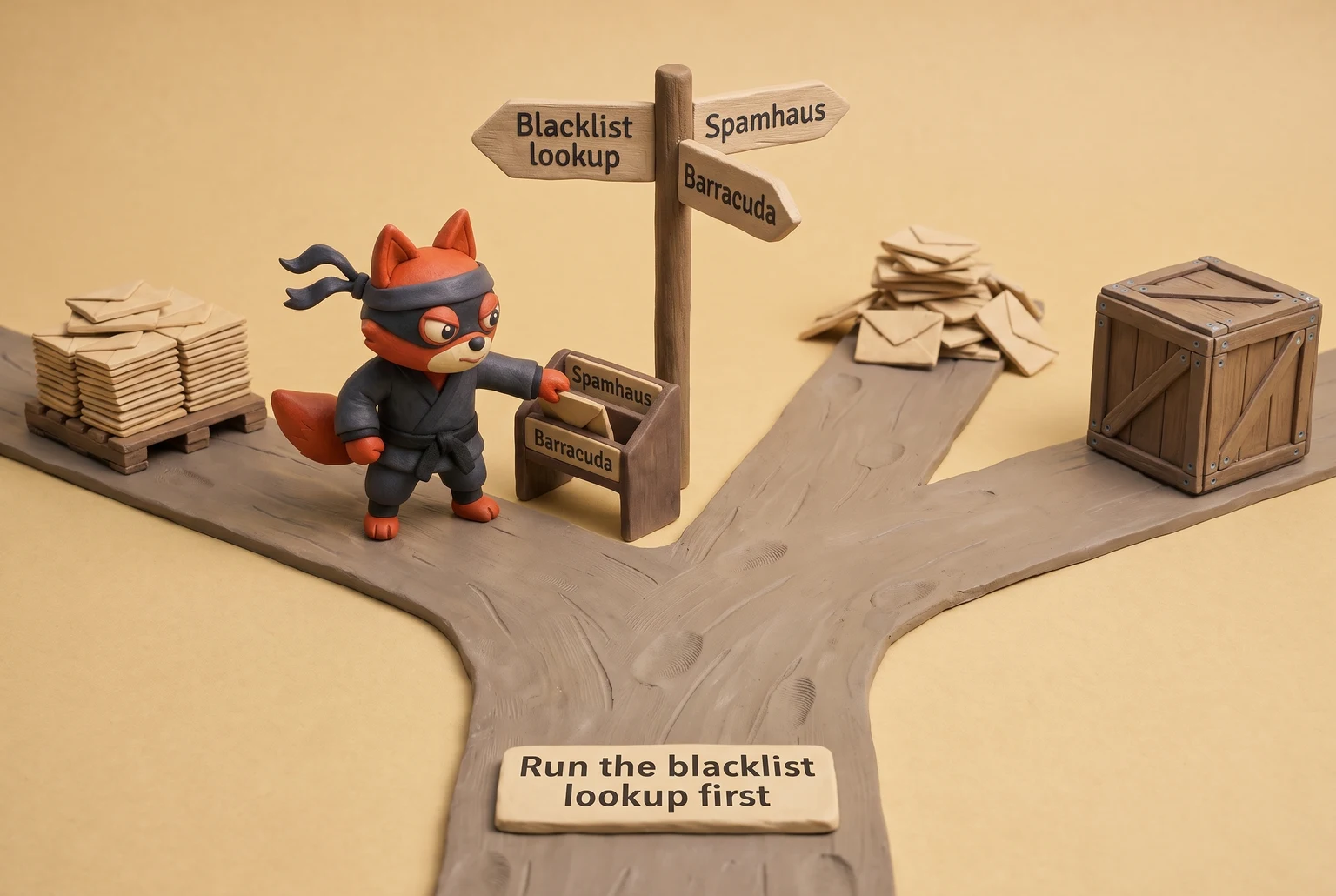
Start with Spamhaus. Run your sending IP through the Spamhaus IP lookup at check.spamhaus.org and your domain through the Domain Block List (DBL). Spamhaus separates listings by cause. SBL covers spam sources, XBL covers exploits and open proxies, PBL covers policy ranges like dynamic IPs, and DBL covers domains. See Spamhaus SBL XBL PBL DBL definitions. See Spamhaus XBL PBL DBL list definitions. The removal path depends on which list you land on, so identify it before you submit anything.
For an SBL or XBL listing, fix the compromise first. Close the open relay, patch the exploited form, and purge the spam run. Then open the Spamhaus Blocklist Removal Center at spamhaus.org/blocklist-removal/, select the list, and submit the removal request with the IP and a clear note on what changed. Spamhaus re-tests the IP before it clears the entry.
If you land on PBL, the IP sits in a policy range that shouldn't send direct mail. You can't self-remove a PBL entry through the same removal flow. The network owner or ISP has to prove the IP runs a legitimate mail server, usually by updating the policy record or moving you to a static range.
Barracuda keeps a separate Reputation Block List (BRBL) for IPs. It doesn't list domains the way Spamhaus DBL does. If Barracuda blocks you, the IP is the target. Run the reputation lookup at barracudacentral.org/lookups/lookup-reputation, enter the IP, and check the listing status. If it shows listed, use the BRBL removal request form. Give the IP, a contact address, and state the abuse source you fixed. Barracuda re-checks before it removes a listing. If the root cause is still live, Barracuda denies your request.
Field note: In my list cleanups, I do not request delisting until I have shut down the bounce source. Submitting early just documents that the abuse is still active.
Check both IP and domain before you submit the removal. A sending domain on DBL and an IP on SBL usually come from one compromised system or one spam campaign. Clearing one while the other stays active won't end the block. Mailbox providers cache blacklist data, so a confirmed removal won't restore inbox placement right away.
The same behavior gets you re-listed. The other half is DMARC monitoring.
Add a DMARC record with both report fields:
v=DMARC1; p=none; rua=mailto:dmarc-rua@example.com; ruf=mailto:dmarc-ruf@example.com; fo=1;RFC 7489 defines rua and ruf. rua delivers aggregate XML reports from receiving providers. Those reports show which IPs sent as your domain, whether SPF (RFC 7208) and DKIM (RFC 6376) aligned, and how many messages failed. ruf delivers forensic samples of failed messages. Forensic samples can include full headers and sometimes body snippets, so keep that mailbox locked down.
Treat rua as your early-warning system. A new IP showing up, a third-party sender missing DKIM, a legitimate service failing SPF: all of it appears in aggregate reports before it becomes a domain-level block. Read the rua mailbox weekly. If a report shows a source you didn't authorize, fix or remove that source before you move p= to quarantine or reject.

Starting at p=none gives you visibility without asking receivers to enforce anything. At p=quarantine or p=reject, DMARC tells receivers how to handle spoofed mail, but the reports arrive at any policy. A delisting without root cause and rua monitoring is just a scheduled re-listing.
I ran a Spamhaus DBL lookup on a domain that was still blocked after recipient unblocking and found the listing sat upstream of any inbox rule.
Email Status Glossary: The 7 States Behind Blocked Email
The seven states and how I read blocked-email risk
I sort every address into seven buckets before I look at a single bounce. Blocked email isn't a solitary binary status. Two buckets create a false blocked signal: catch-all and role-based. A third, disposable, quietly hurts sender reputation while syntax checks still call it valid.
| Status | What it means | Blocked email risk |
|---|---|---|
| Valid | SMTP RCPT TO returns 250 or 252; mailbox exists and accepts mail. | Low. A block here lives in recipient rules, not your list. |
| Invalid | SMTP RCPT TO returns 550 5.1.1 (RFC 5321). | High. Hard bounces feed sender-side blocks and blacklist entries. |
| Risky | Valid syntax but SMTP returns 450/451 transient, or the address pattern matches spam-trap flags. | Moderate. Quarantine before send; repeated sends can trip greylist filters. |
| Catch-all | Mail exchanger accepts any local part, real or invented (RFC 1035 MX catch-all configuration). | False blocked signal. No bounce, but no human reads it. |
| Disposable | Temporary signup domain; Google's sender guidelines set a 0.3% spam complaint threshold, and these addresses add complaint risk. | Quiet reputation damage. Elevated complaint risk moves future mail out of the inbox. |
| Role-based | Group address like sales@ or support@ (RFC 2142). | False blocked signal. Messages get archived or ignored with no engagement. |
| Unknown | Provider returned 450/451 during validation or connection timed out. | Treat as risky. You can't prove delivery, so every send is a gamble. |
How I act on the seven states before a send
The pre-send suppression pass
Before each send, suppress invalid and disposable, pull catch-all and role-based from engagement workflows, and re-verify unknown on a second pass.
The catch-all symptom I watch for
Field note: In the lists I clean, catch-all domains hide blocked-address symptoms because they never bounce.
Key takeaways
- Determine whether the block is local to a mailbox or global across a domain before changing any settings.
- A recipient-side block is a fixed rule; marking as spam is a training signal that affects more than one inbox.
- Block exact senders at the mailbox level, but use domain or subject rules for abuse patterns instead of accumulating block-list entries.
- Unblock lists are hidden in settings, not the inbox; Gmail mobile doesn't expose them, so use a browser.
- Validate addresses at signup and before each send, and review DMARC rua reports weekly to stop sender-side blocks before they start.
Blocked Email FAQ
How do I know if someone blocked my email?
You can't know for certain from the sending side. A local block produces no bounce and no non-delivery report; the mailbox accepts the message, then routes it to Spam or Junk. For sender-side blocks, you'll see an SMTP bounce or a blacklist listing instead. The only reliable local-block signal is sending a test from a different address. If that test lands in the inbox and yours doesn't, the recipient likely blocked you. Field note: In the lists I clean, I always test from a fresh address before touching any rule.
Does blocking an email sender notify them?
No. Blocking is a silent, post-acceptance filter. The receiving server accepts the message first, then applies the block rule and routes it to Spam or Junk. Because acceptance already happened, the sender gets no bounce, no non-delivery report, and no notification from the mailbox provider. This is true in Gmail and Outlook; neither sends a notification. The only way a sender learns is if you tell them directly or if they test from another address.
Can blocked emails still appear in my inbox?
Yes, in specific cases. A block matches the exact From address you added. Mail from a different address on the same domain, a spoofed name, or a forwarded copy can still reach the inbox. A block list entry also won't catch messages already delivered before the block was set. And if the sender changes their address or uses a subdomain, the block rule misses it. Check the block list regularly.
How do I unblock a sender I accidentally blocked?
Open the blocked addresses list and remove the entry. In Gmail: Settings > Filters and Blocked Addresses > Unblock. In Outlook on the web: Settings > Mail > Junk email > Blocked senders > Remove. In desktop Outlook: Junk > Junk E-mail Options > Blocked Senders > Remove. The change applies to future messages only. Messages already in Spam or Junk stay there until you move them. If the address is also in a filter or mail flow rule, remove it there too or the block persists.
What's the difference between blocked and spam?
Blocking is a personal rule that sends future mail from one exact address to Spam or Junk, and it never trains the provider's filters. Marking as spam is a training signal that feeds a shared classifier. A spam complaint follows sender features: IP, domain, and message template, so it can affect mail for other recipients. One block stays local. At Gmail, reported spam above the 0.3% threshold in its sender guidelines degrades the sender's reputation at the provider level.
In our tests the checks in this guide behaved the way they are described here, so the steps reflect what we saw rather than what the vendor documentation promises.
Readers working through this usually run into blocked email meaning, what causes a blocked email and step step instructions as well, so they are worth understanding alongside the main topic.
Stop Guessing Whether Blocked Email Is Your Fault
Stop reacting to blocks after they appear. Pre-send validation and DMARC monitoring prevent the sender-side failures that no unblock button can fix.
Validate every address at signup and again in your pre-campaign job before the send queue builds. That catches catch-all domains, disposable addresses, and syntax errors before they turn into bounces. Weekly rua reviews surface authentication drift and spoofing attempts while they are still cheap to correct, moving blocked email out of the inbox UI and into the infrastructure decisions you control.
A Gmail unblock click will not remove a Spamhaus listing. A delisting will not undo a week of bad sends. See Gmail unblock Spamhaus listing independence. When I get a blocked-email alert, I run the same sequence before I touch any unblock button: check the sending domain on Spamhaus, open the latest 'rua' report for failed DKIM selectors, and re-check the campaign's pre-send validation log for catch-all or disposable addresses.
Know email status before send. Start my validation run at Verifox.
Key takeaways:
- When I get an alert about a blocked email
- Block the sender at the mailbox layer first
- The unblock paths live in two different settings panels
- When I audit a client's list
- Block the root domain first: per-address blocking does not scale.

I'm an AI researcher and founding engineer focused on what happens after the base model: grounding, evaluation, human control, and reliable deployment. At Harvard Business School's AI Institute, I build research platforms and LLM measurement pipelines: a six-condition human-AI negotiation experiment platform, and an LLM pipeline that mapped problem statements from 88,000+ startups, validated against 331 founder interviews. Previously I built the agent backend and real-time voice AI for CareCorgi (FastAPI / Gemini / GCP), and co-founded Zumer, an externally audited DeFi protocol on Ethereum mainnet. The common thread: turning ambiguous human problems into instrumented AI systems with structured outputs, behavioral evaluation, and production safeguards. First-author publications at CHI and CHIWORK. Open to Applied Scientist / AI Engineer roles.